Payments | OCBC Singapore

Scan and pay in over 55 countries worldwide

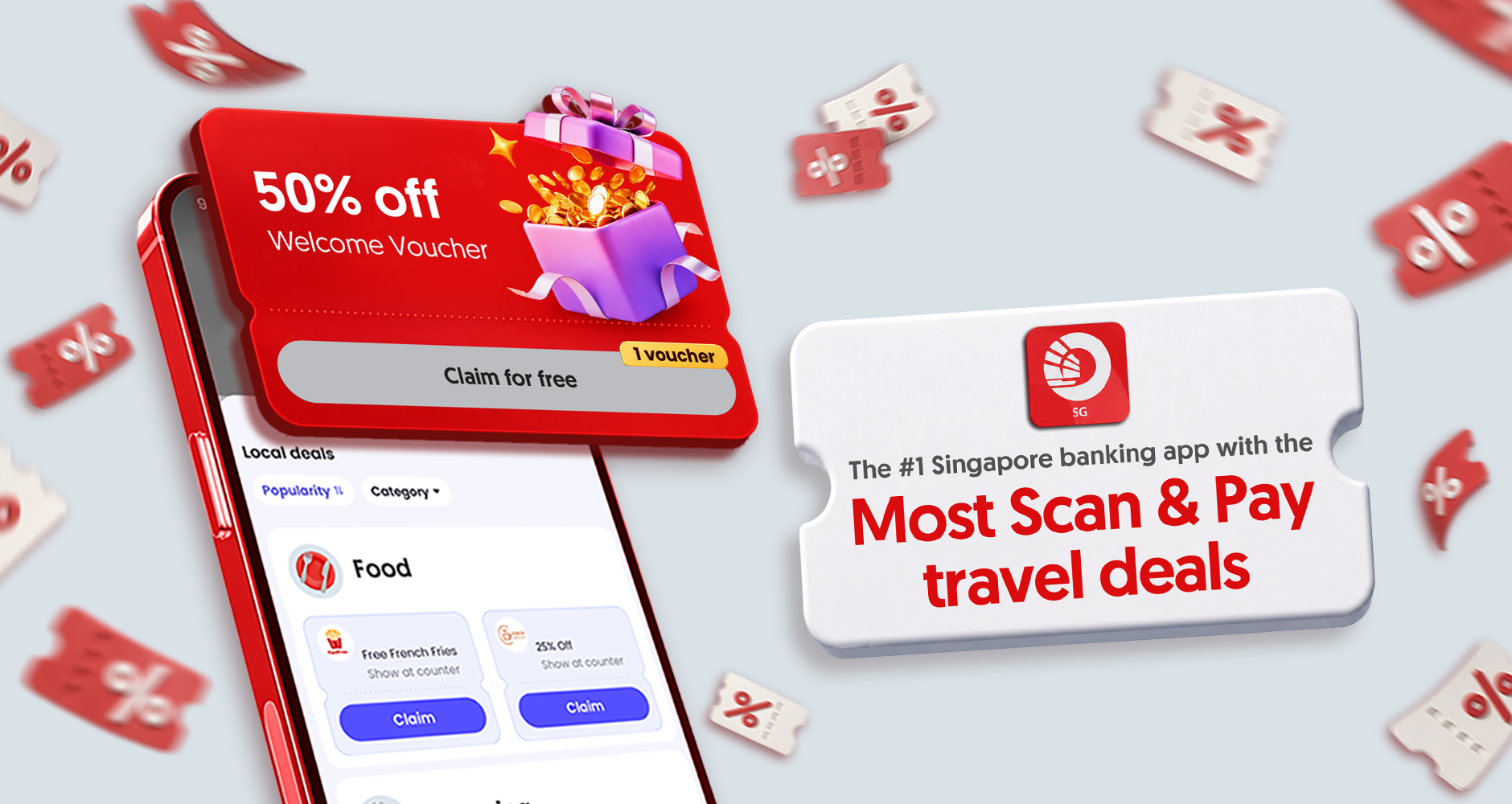
The most comprehensive Singapore banking app

with the most number of cross-border payment partners.

Seamless cross-border payments

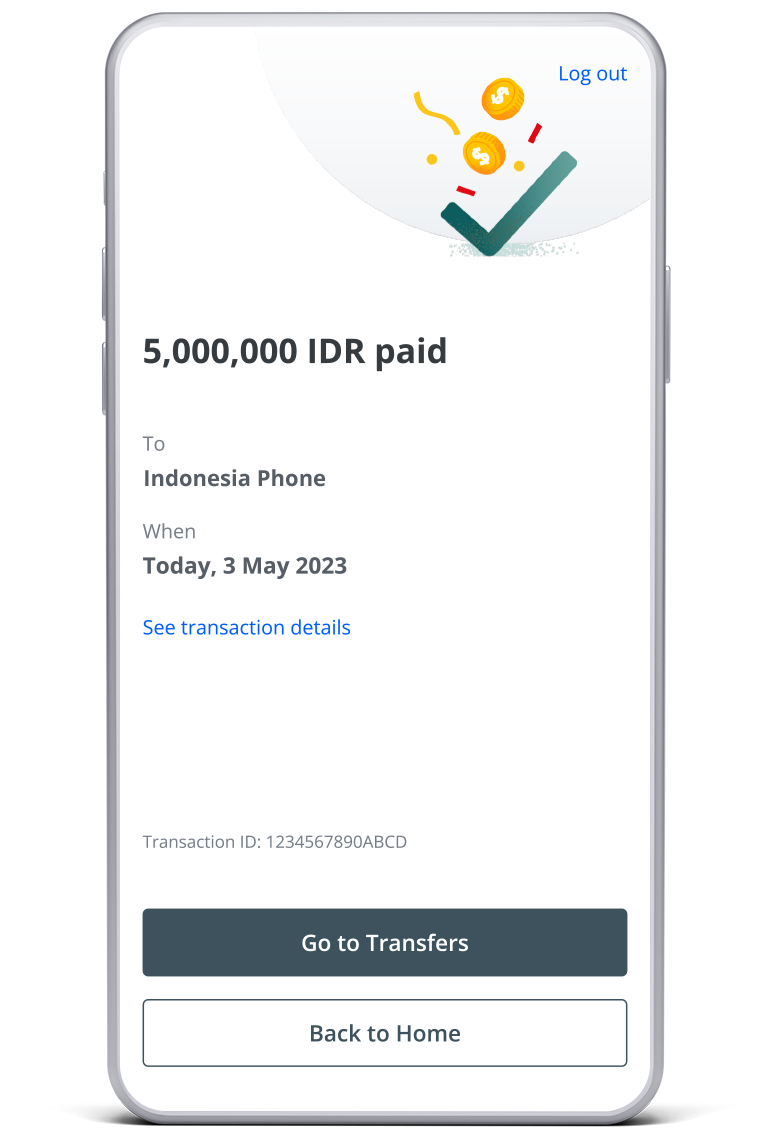
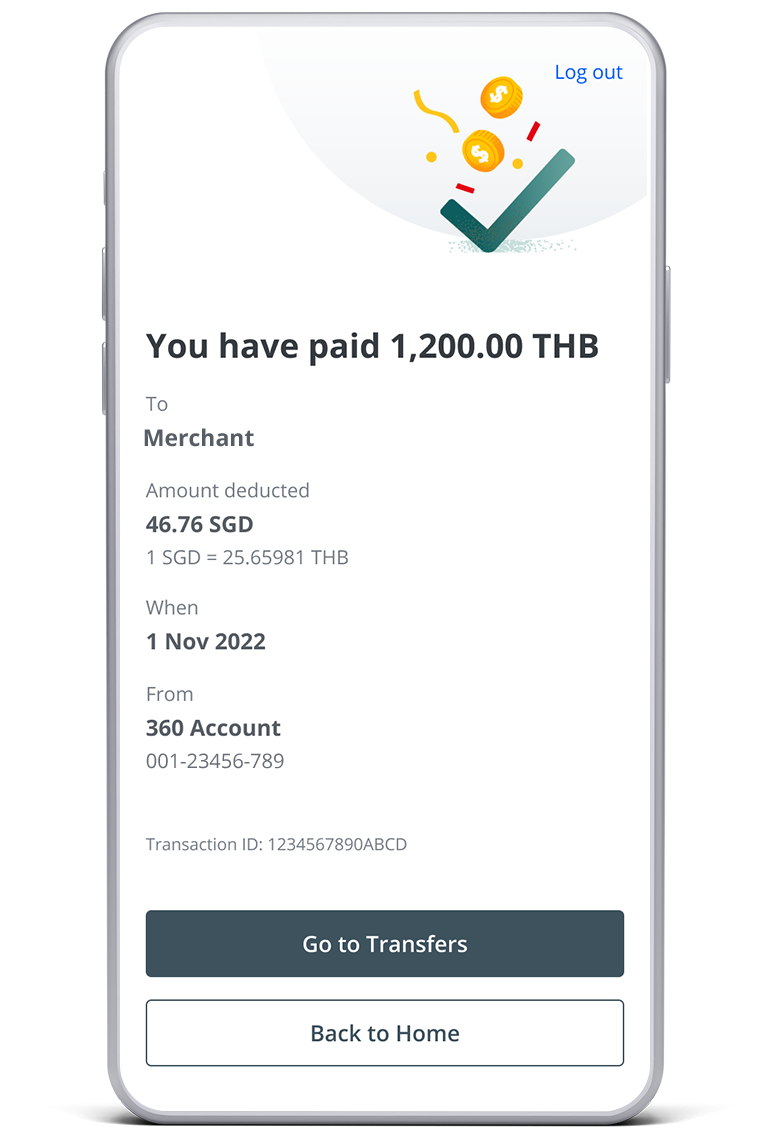
Pay as you would locally, directly from your OCBC app now.

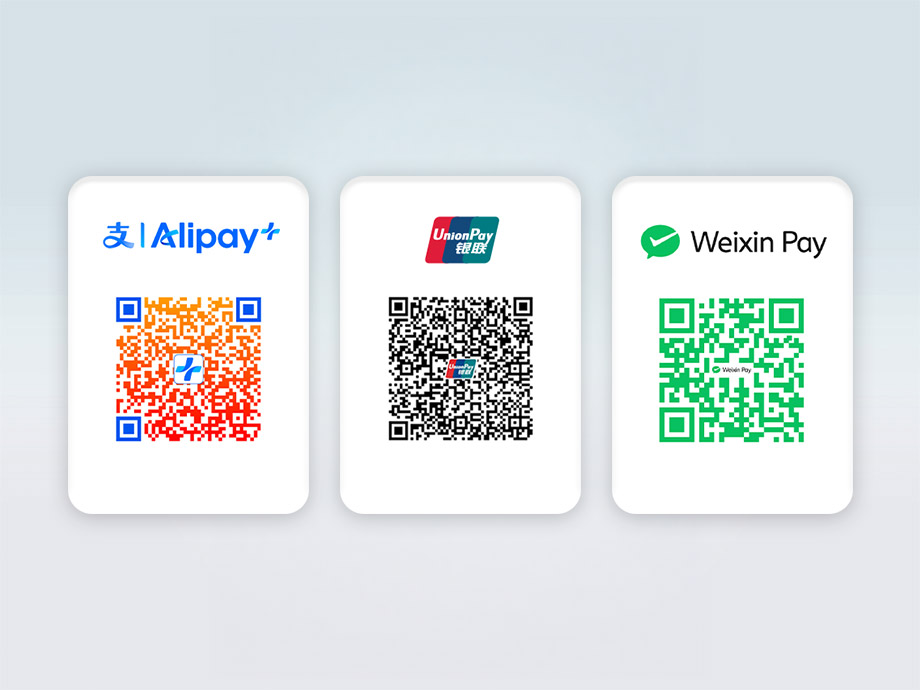
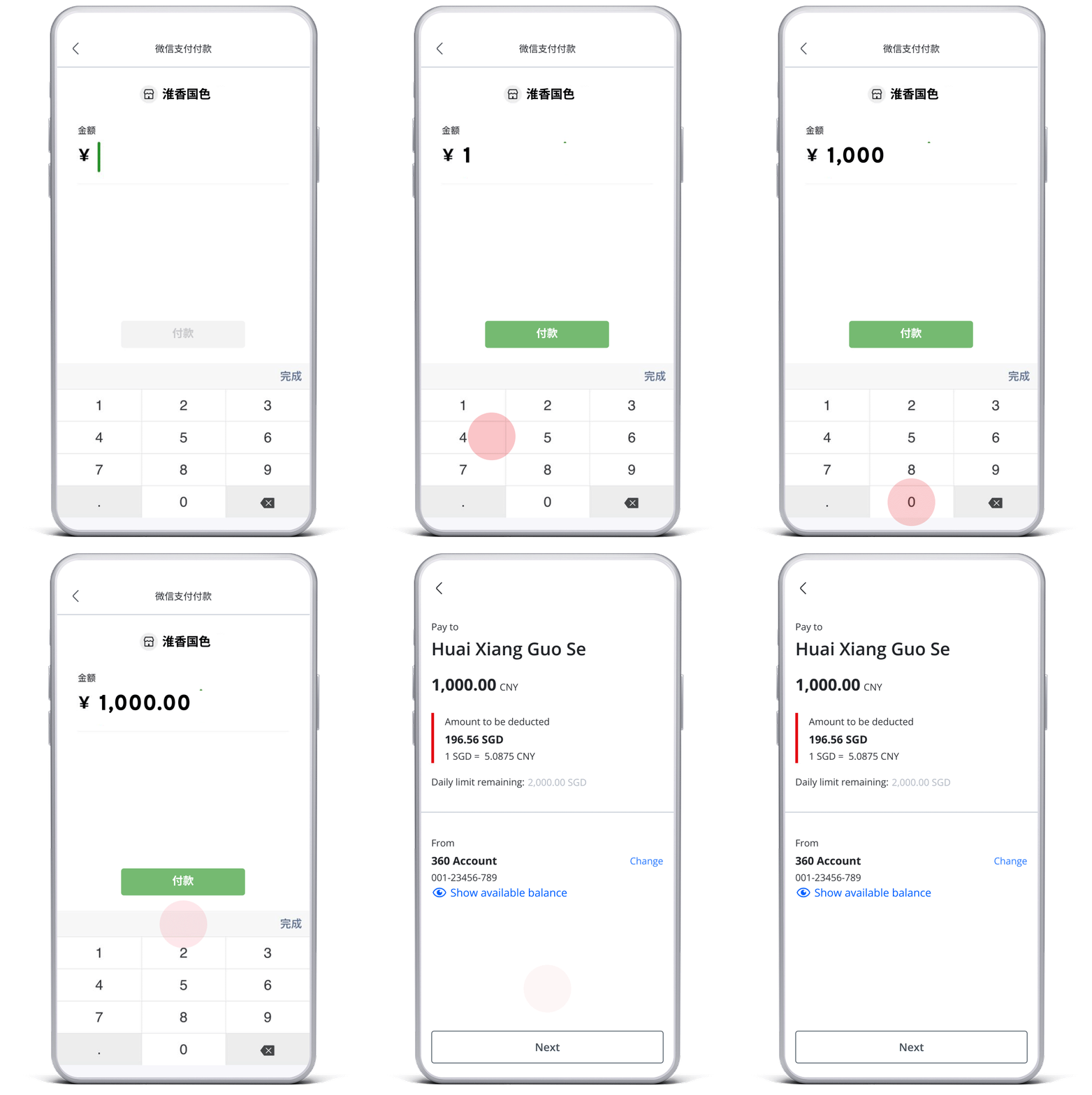
Pay across China with Weixin Pay, Alipay+ & UnionPay in the OCBC app. For real!

  • No extra apps
  • No wallet top-ups
  • No transaction fees (even above RMB200)
  • Direct debit from your SG account
  • Competitive real-time rate

Family dinner rule: whoever pays first win. Scan & pay overseas with OCBC app!

With the OCBC app, you can now:

  • Skip the money changers
  • Competitive FX rates, no hidden fees
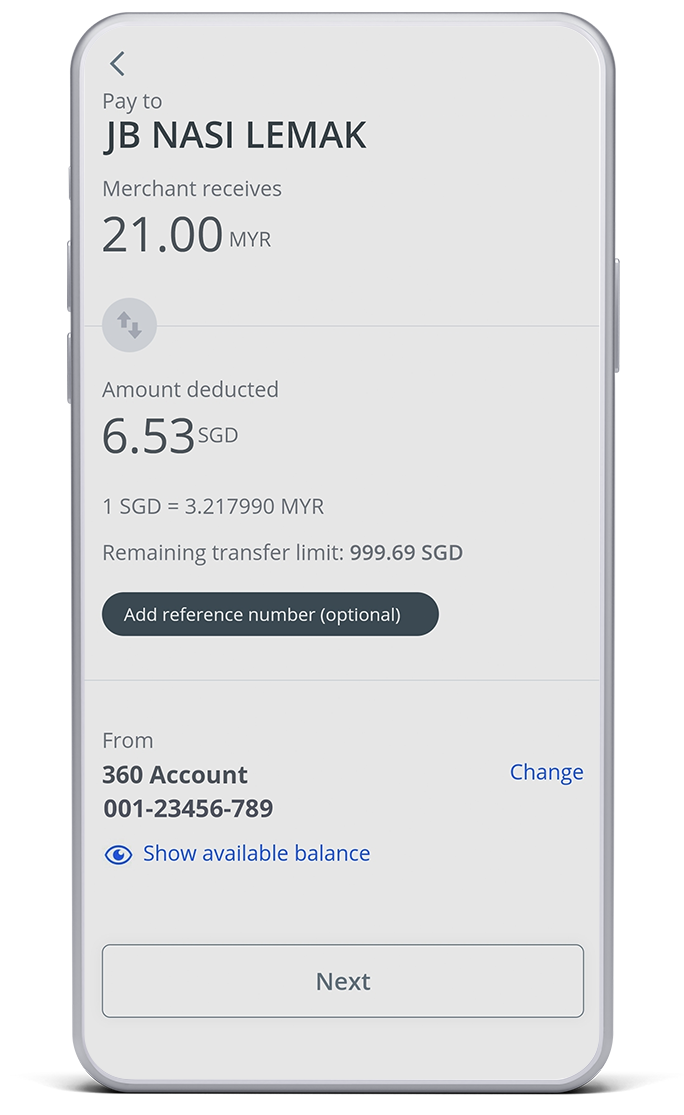
  • Pay in SGD directly from your account
  • Scan and pay in over 55 countries with one app

Pay Smoothly, Everywhere Life Takes You

Scan QR codes and pay easily, in over 40 countries.

Go cashless during your travels with OCBC app

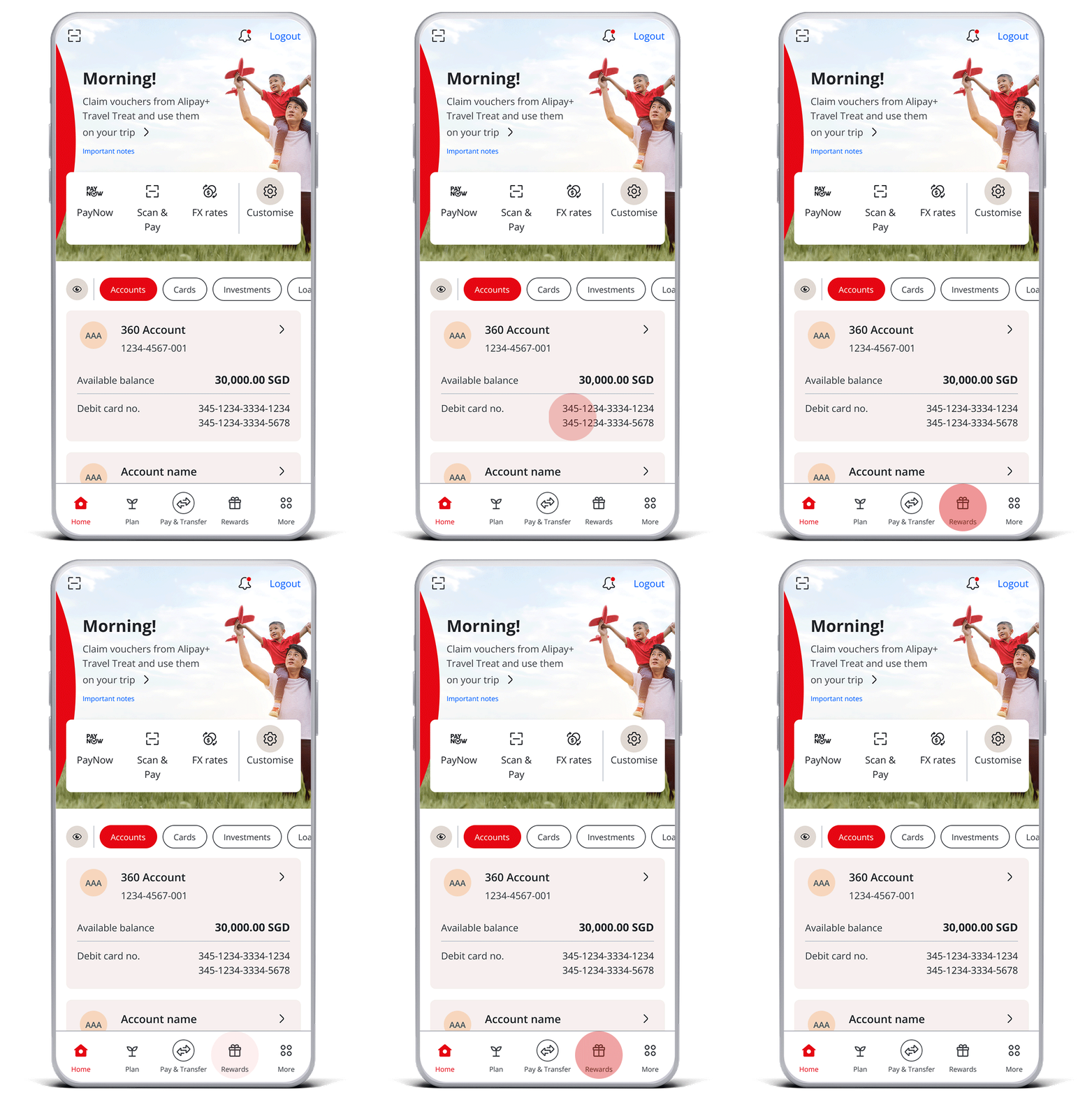
Scan and pay with your OCBC app at popular destinations including China, Hong Kong, Malaysia, Thailand, Japan, Indonesia and South Korea. No registration or funding of digital wallets is needed.

Plus, enjoy competitive exchange rates, S$0 transaction fees – even for payments over RMB200 in Mainland China – and pay in SGD at the day’s rate with no hidden fees.

View our 6 cross-border payment partners and the supported merchant categories below.

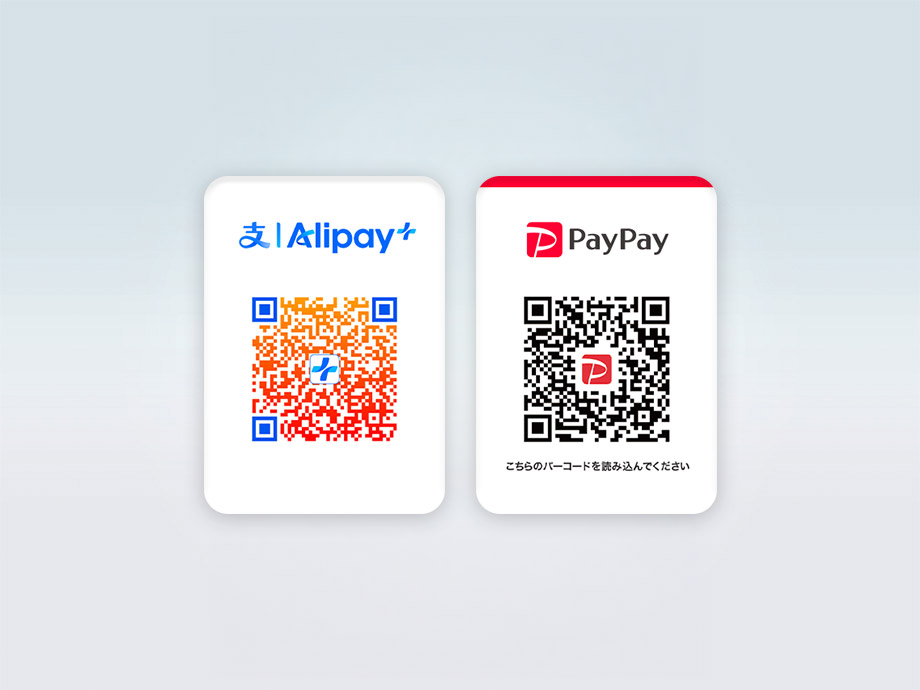
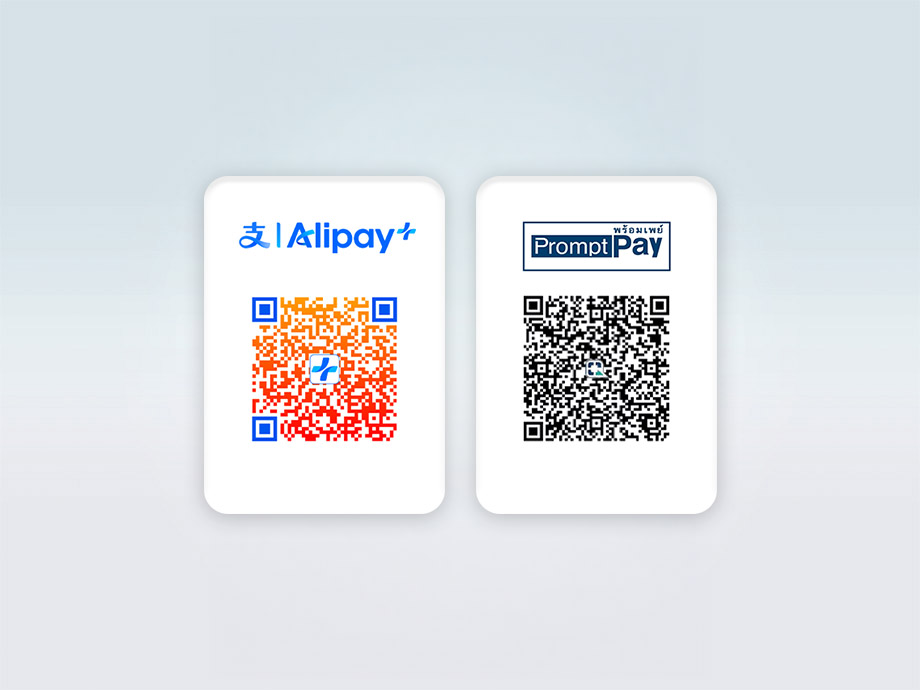
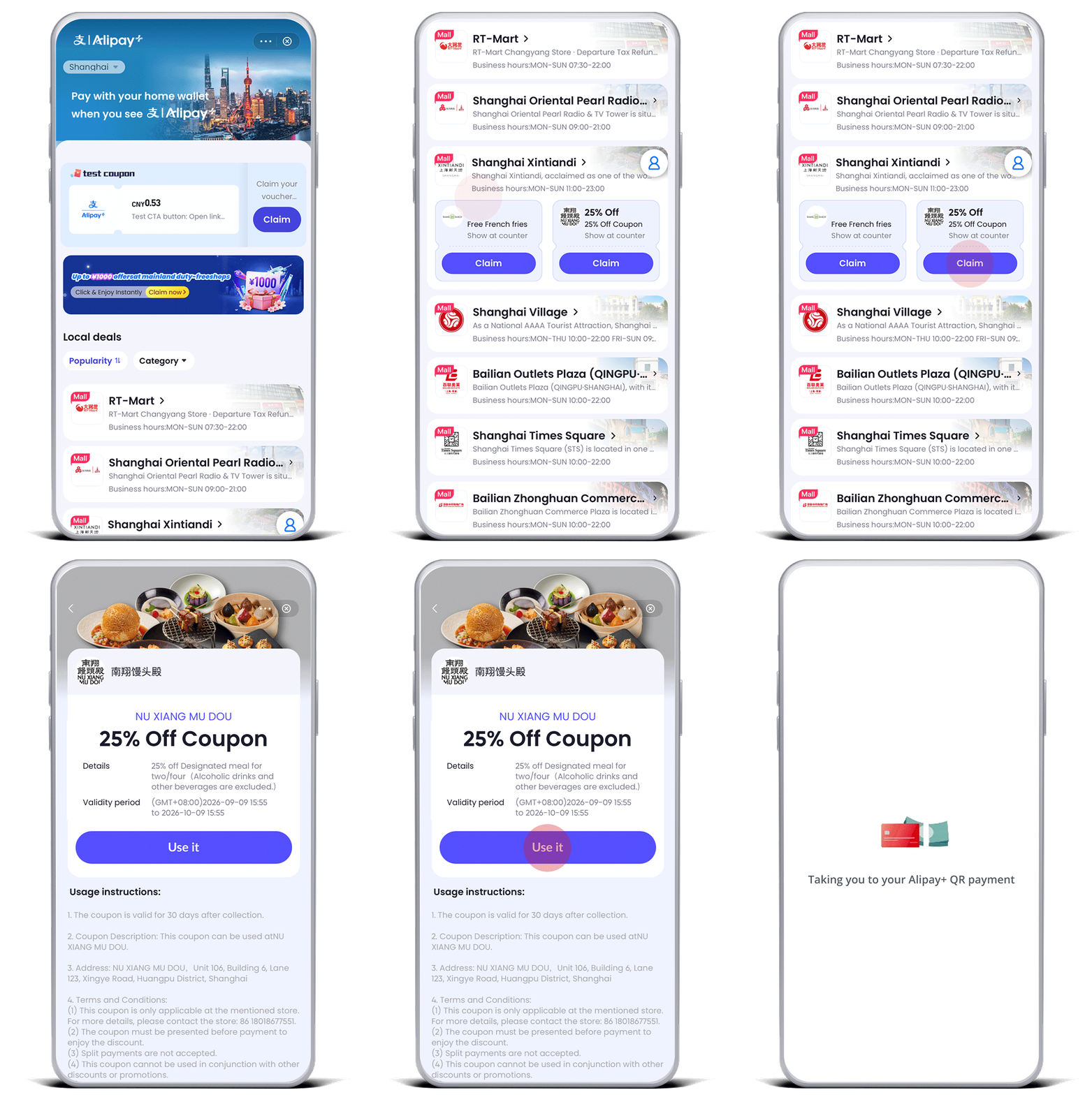
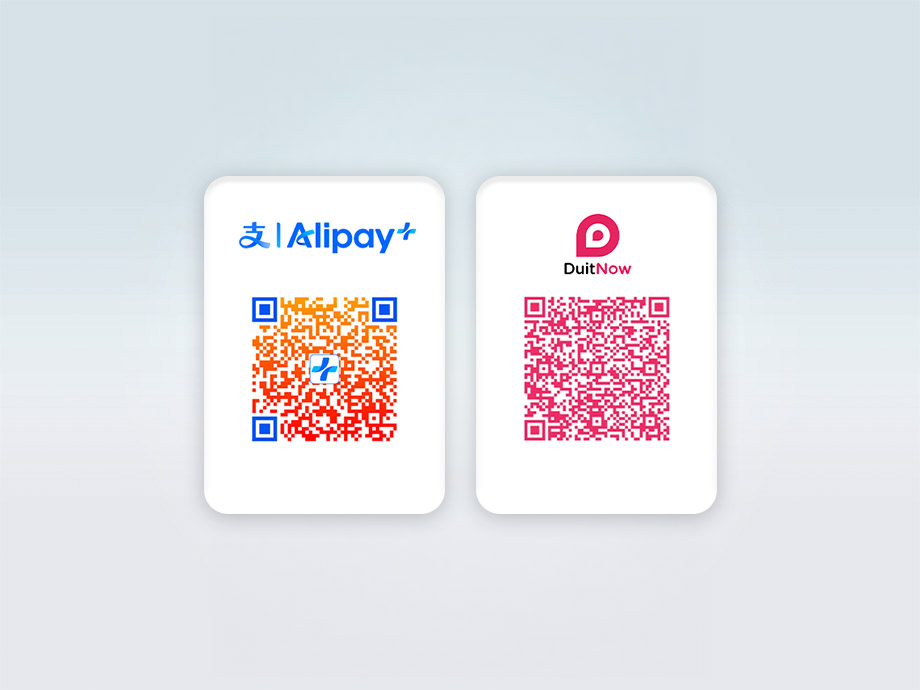
Where to use Alipay+ QR?

Alipay+ QR is accepted in 57 destinations worldwide, such as China, Japan, Hong Kong, Thailand, Malaysia, South Korea and more, with a daily transaction limit of S$3,000. Popular merchants include:

  • China: MINISO, Starbucks, TOP TOY
  • Malaysia: Caring Pharmacy, Village Grocer, Watsons
  • Japan: Don Quijote, Takashimaya, UNIQLO

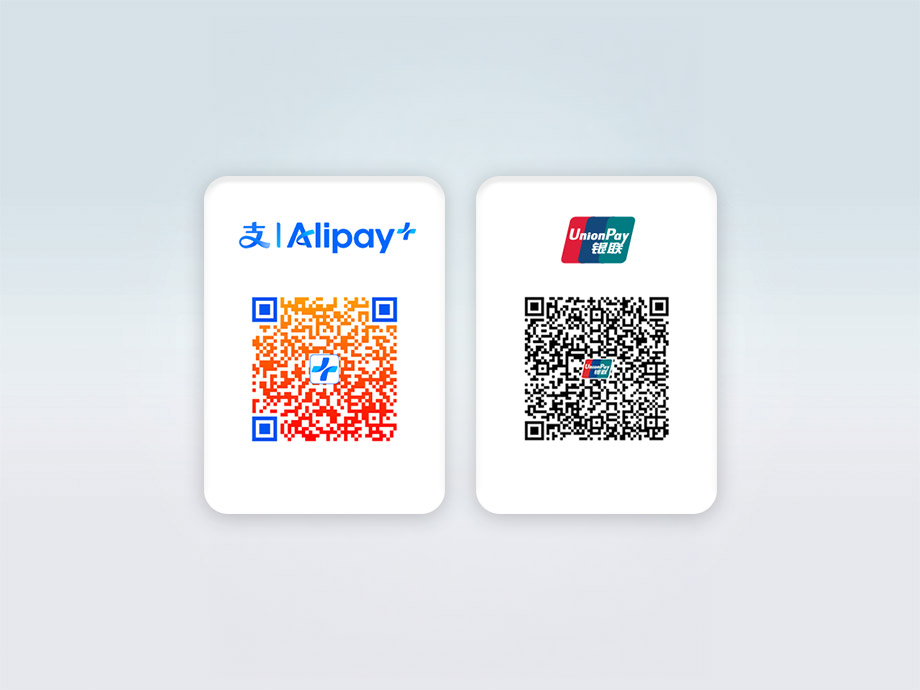
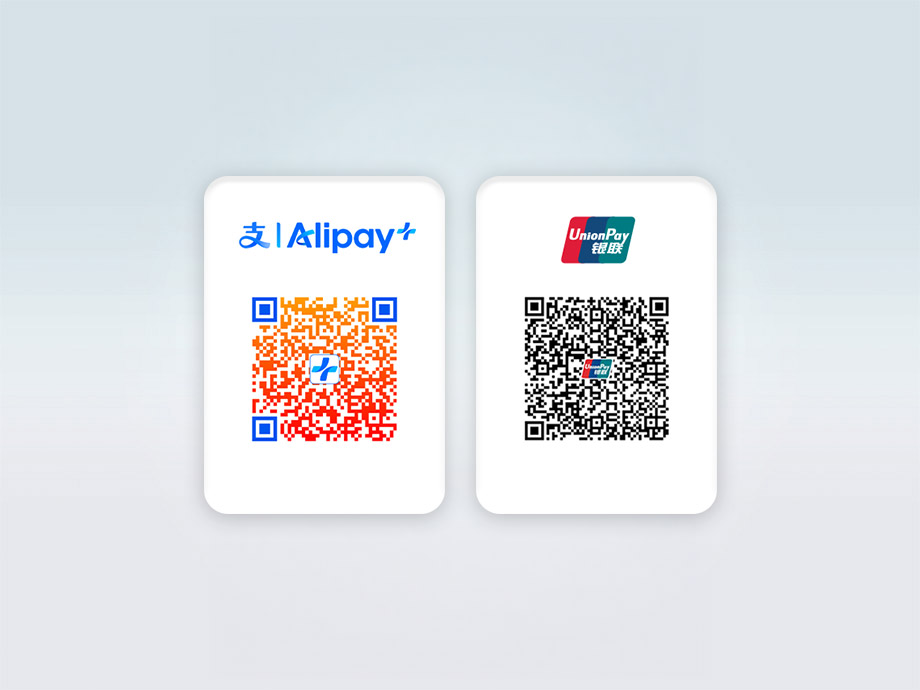
Look out for the Alipay+ QR code at the merchant’s counter.

View our frequently asked questions.

ENJOY MORE CROSS-BORDER SAVINGS WITH ALIPAY+ QR

No cash or cards needed – pay everywhere in China with the OCBC app

Enjoy competitive exchange rates comparable to online exchange platforms; and no service fees for payments up to S$3,000 daily.

Skip the money changer and go cashless on your next trip to Malaysia

Join us as we take you across the borders for a full-on shopping spree at Mid Valley Southkey! Watch the video to discover how you can easily scan and pay with your OCBC app via Alipay+ QR codes.

Where to use UnionPay QR?

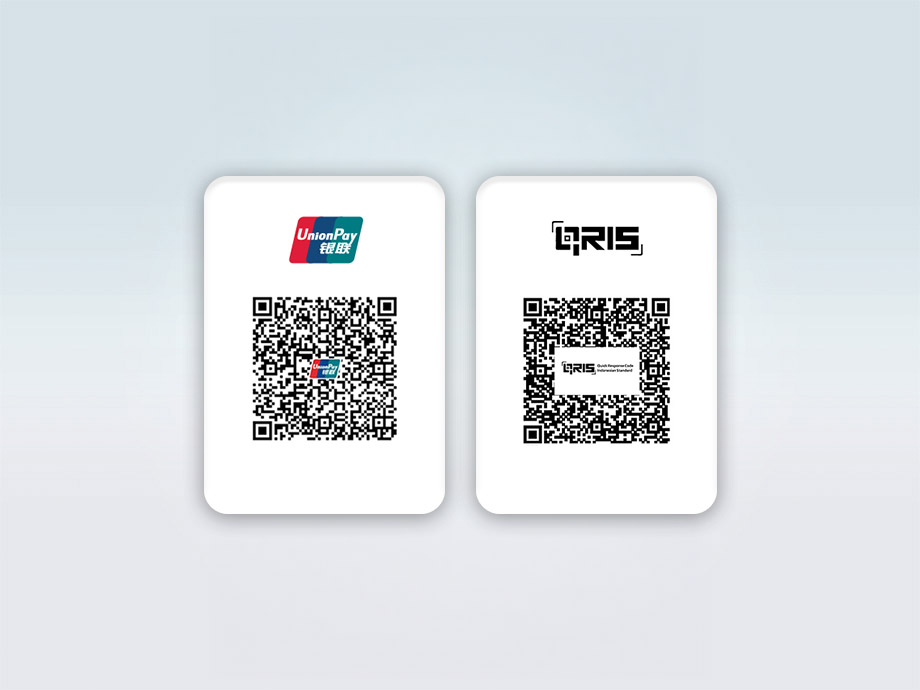
UnionPay QR is accepted in both Singapore and over 40 destinations worldwide.

Look out for the UnionPay QR code at the merchant’s counter.

Want to give UnionPay QR a try in Singapore? You can do so at local merchants* like:

  • HeyTea
  • Old Chang Kee
  • Chi Cha San Chen
  • GongCha
  • Dunkin Donuts
  • Killiney
  • Royce
  • Kim Choo Kueh Chang and more.

View our frequently asked questions.

Learn more about UnionPay Virtual Token

*Updated as of 09 February 2026.

Where can you use Weixin Pay QR?

You can use Weixin Pay to make payments in Mainland China, with a daily transaction limit of S$2,000, for services like ride-hailing, dining, entertainment and more. Merchants include:

  • Coucou Hotpot
  • Haidilao Hot Pot
  • HEYTEA
  • Holiland
  • MINISO
  • Naixue
  • Xiabu Xiabu

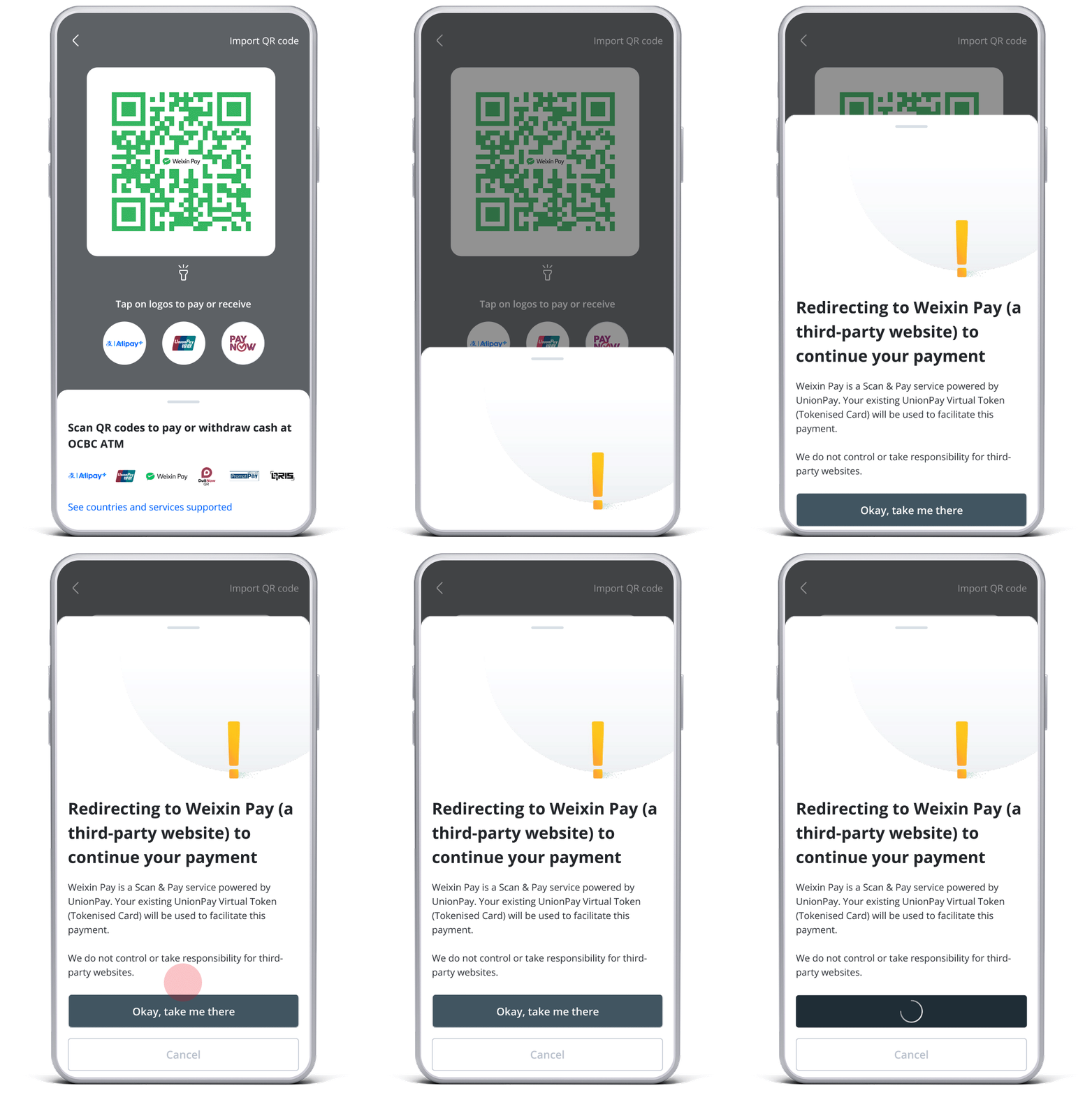
Look out for the Weixin Pay QR code at the merchant’s counter. Weixin Pay QR payments are facilitated via UnionPay using a UnionPay Virtual Token.

View our frequently asked questions

Learn more about UnionPay Virtual Token

Where to use DuitNow QR?

Simply look out for participating financial institutions’ logo on merchant’s DuitNow QR display.

DuitNow QR is widely accepted across Malaysia.

View our frequently asked questions.

Where to use PromptPay QR?

PromptPay QR is widely accepted across Thailand. PromptPay QR linked to individual mobile numbers are not supported.

Look out for the PromptPay QR code at the merchant’s counter.

View our frequently asked questions.

Where to use QRIS?

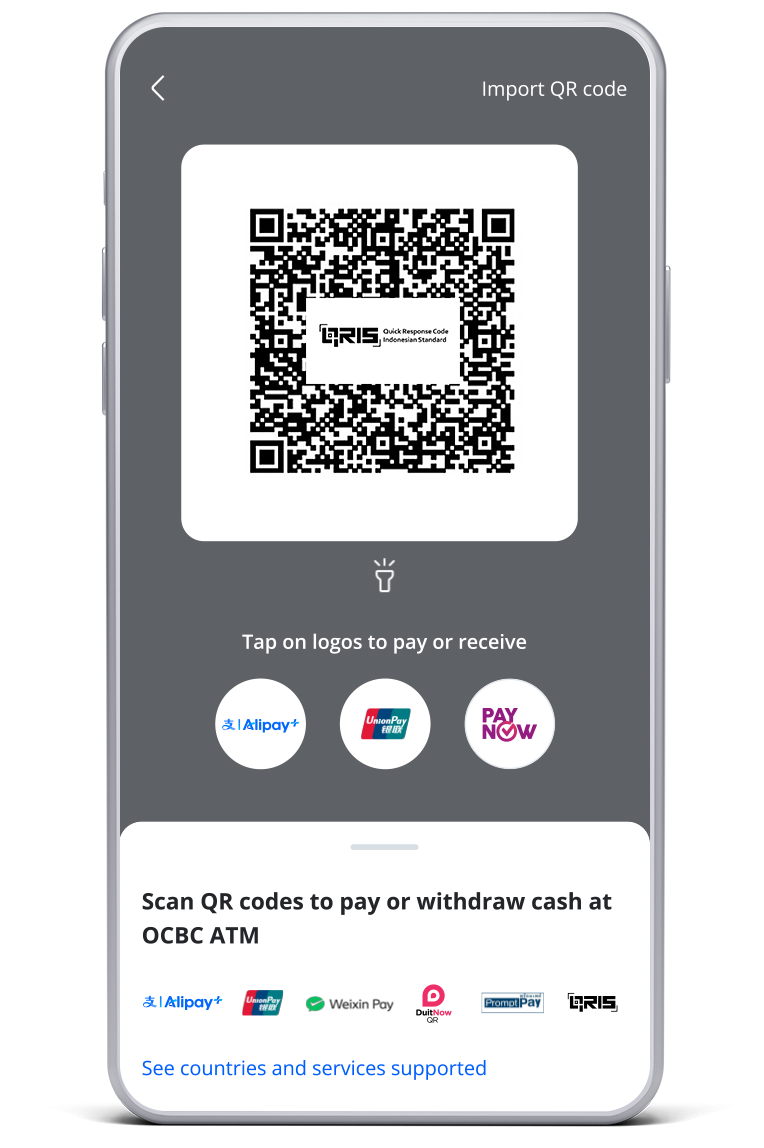
Simply look out for QRIS QR code at the merchant counter to make payment at over 15 million participating merchants across Indonesia.

View our frequently asked questions.

PROMOTIONS
Get up to S$60 cashback when you scan and pay overseas

Simply scan and pay overseas with the OCBC app and spend a minimum of S$150 within the respective promotion period to earn S$30 cashback. Yes, you can win the cashback in both promotion periods!

Promotion Period 1
13-31 March 2026
Exclusive to the first 500 eligible customers

Promotion Period 2
1-30 April 2026
Exclusive to the first 500 eligible customers

Plus, enjoy fuss-free payments with no transaction fees, even for transactions above RMB 200.

Terms and conditions apply.

SCAN AND PAY LOCALLY

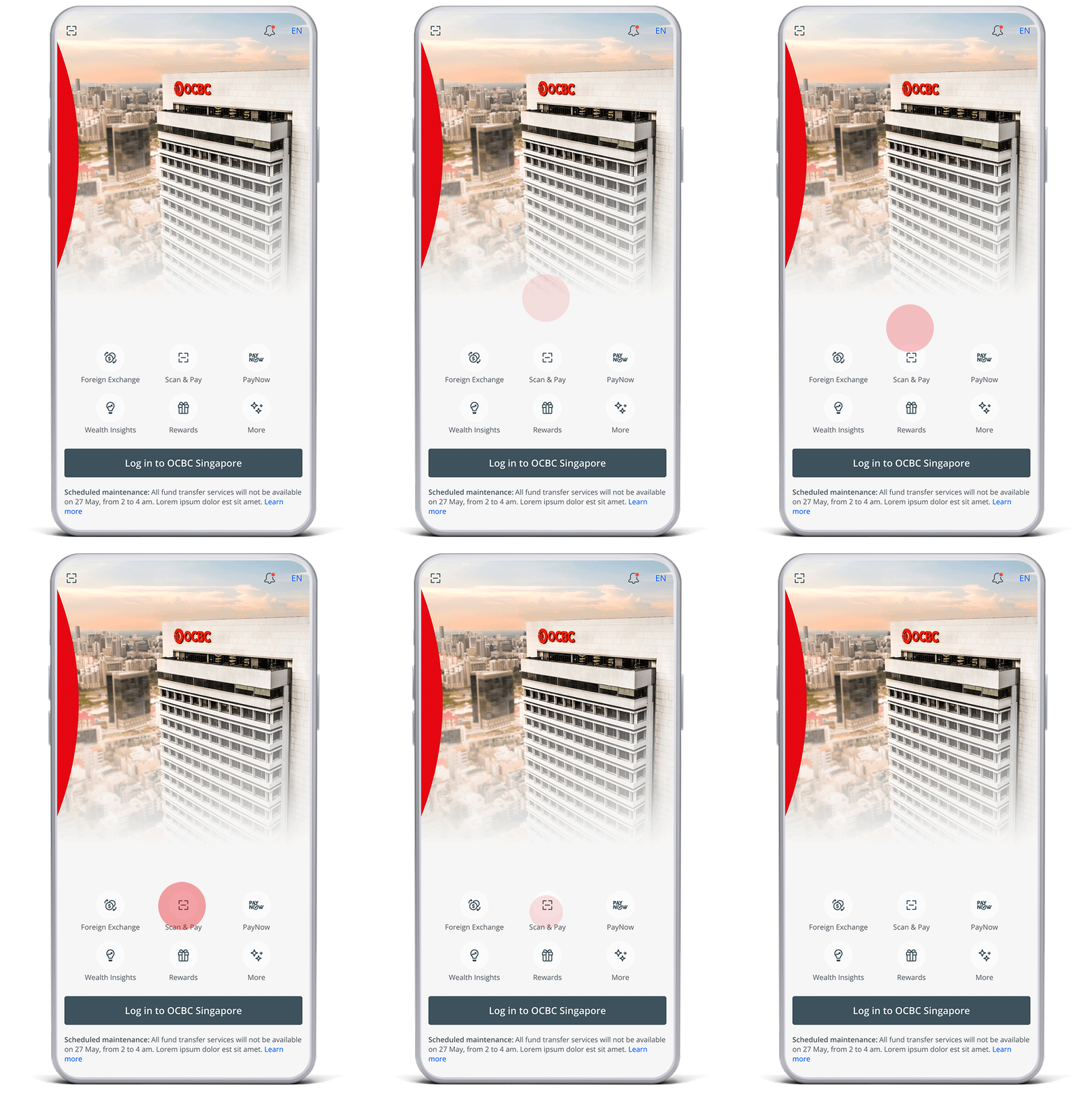
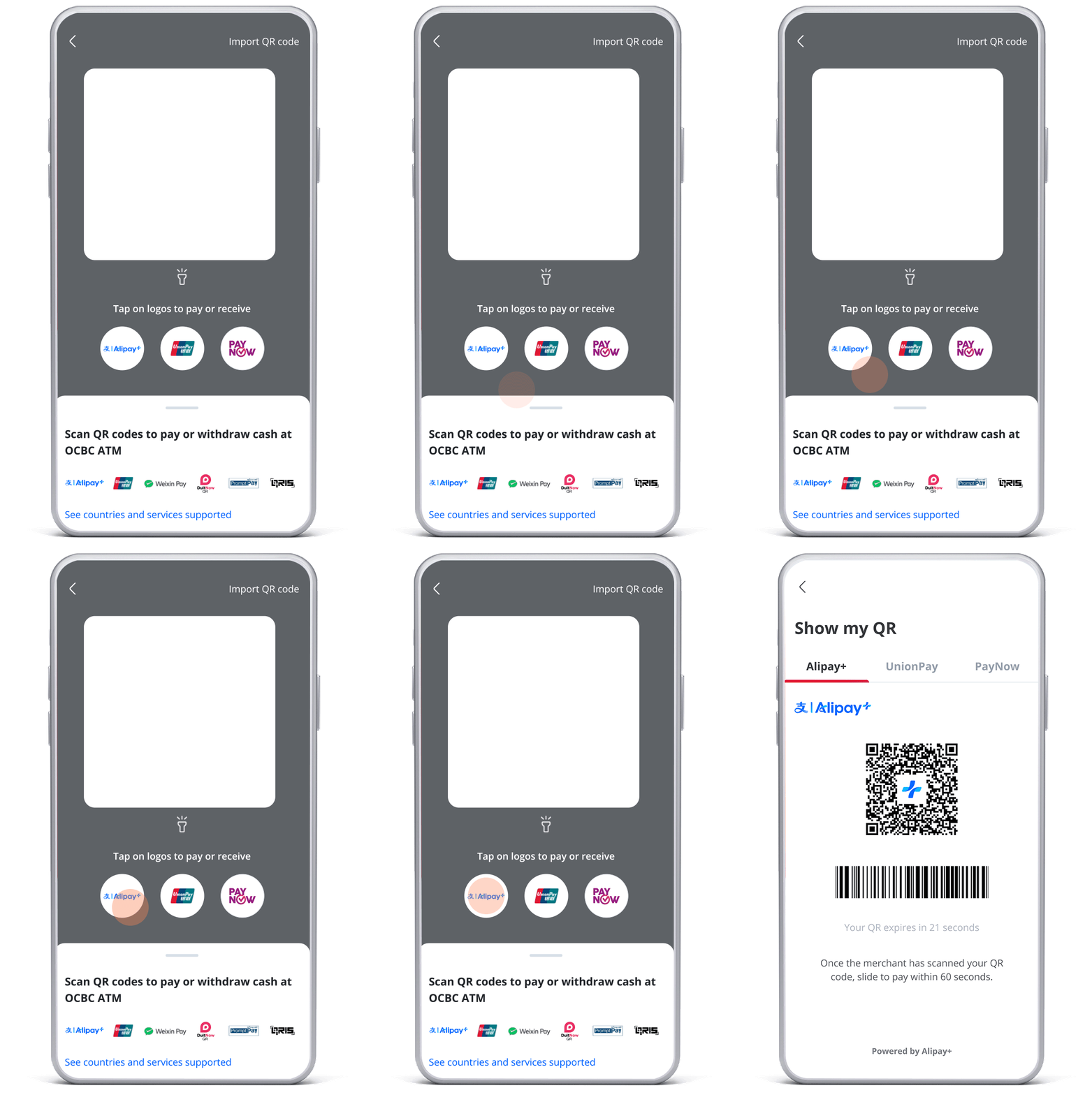
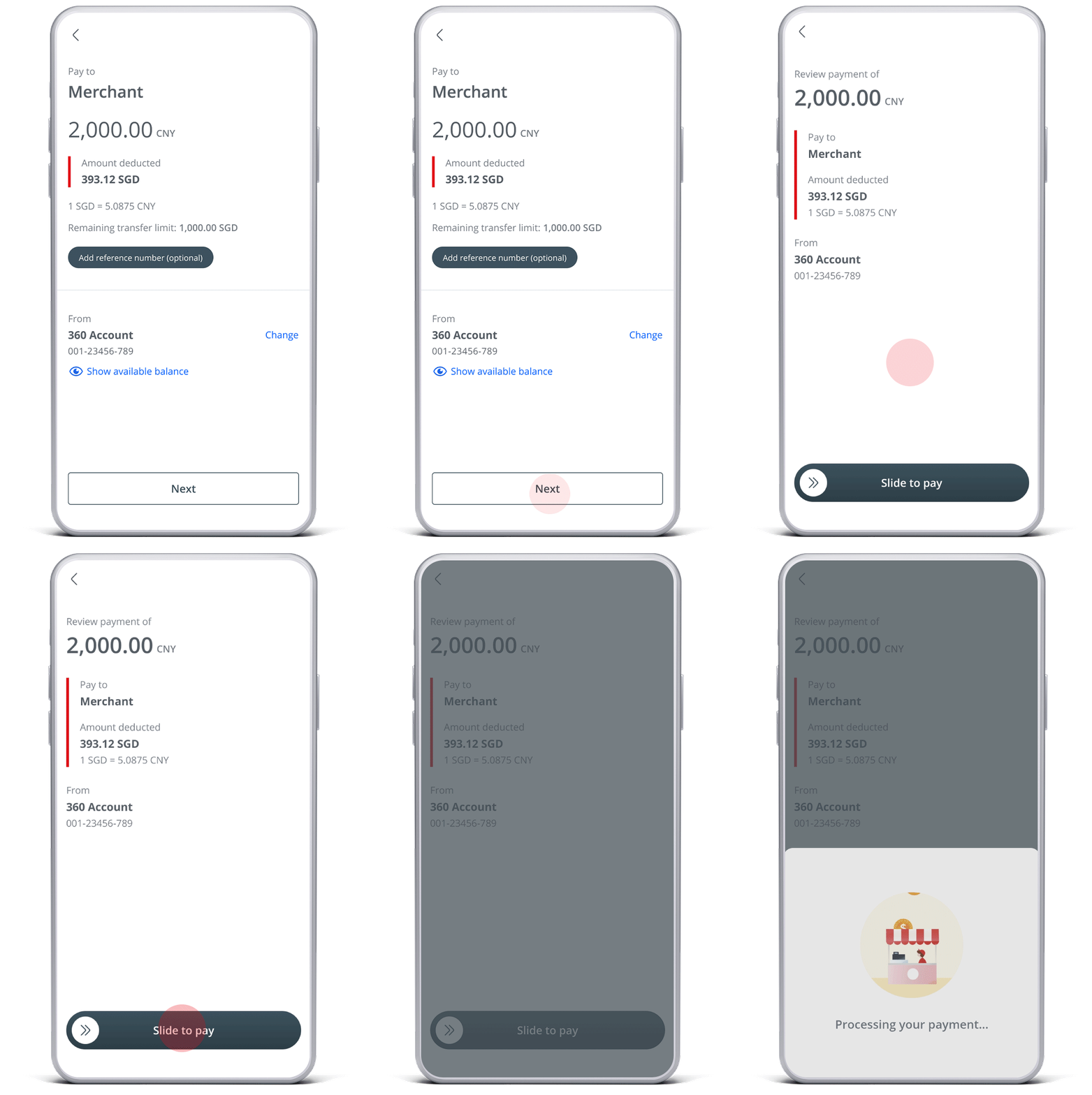
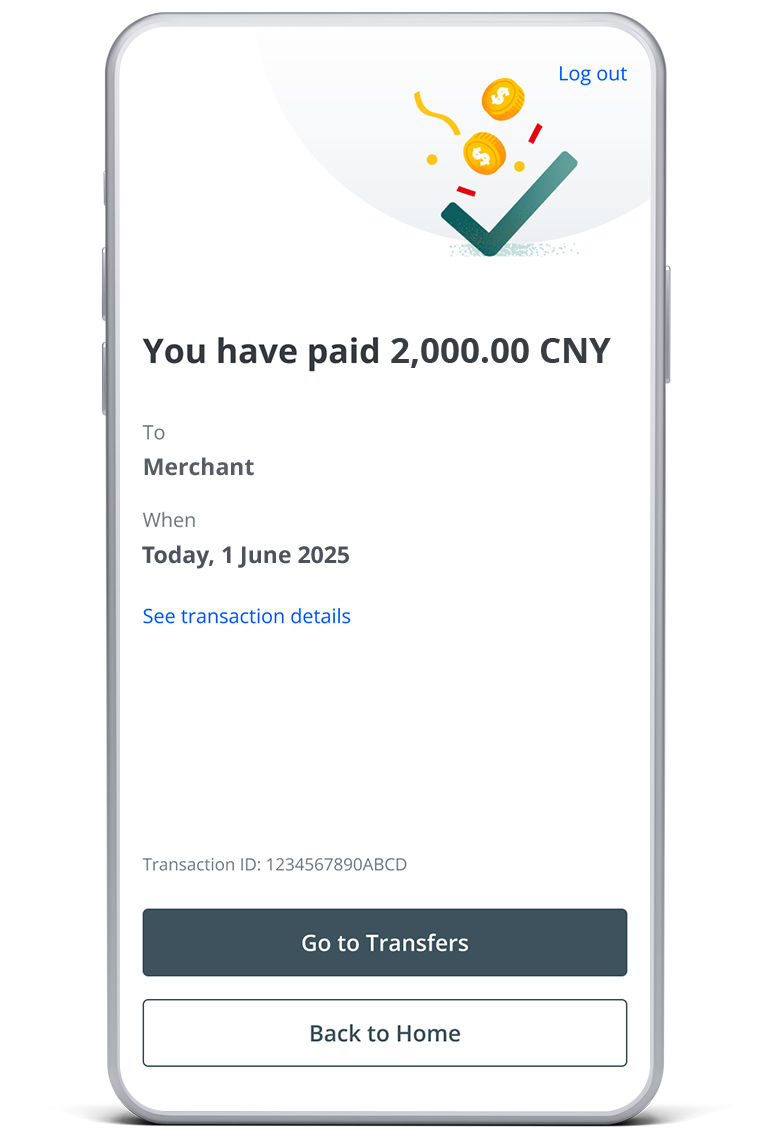
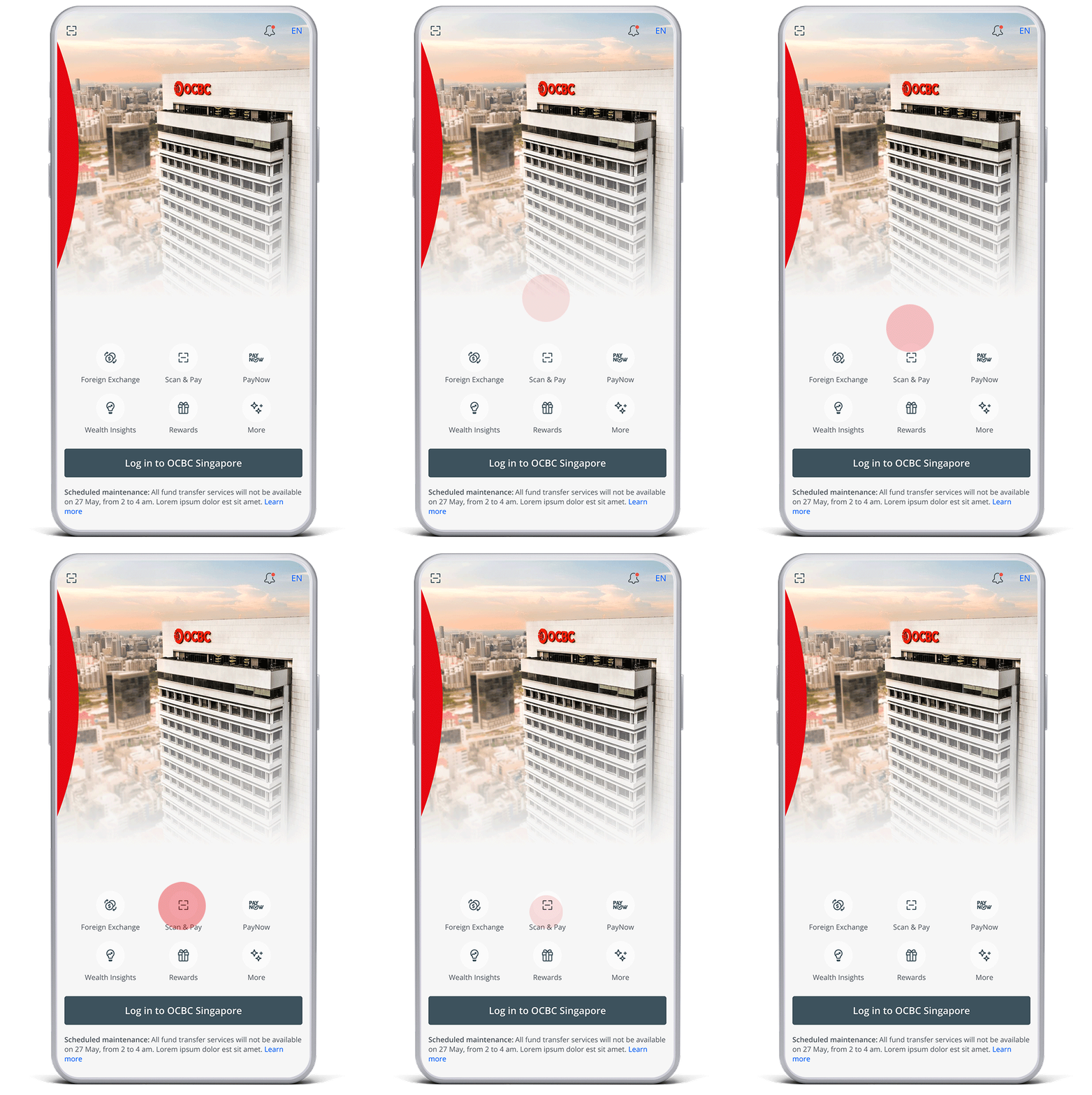
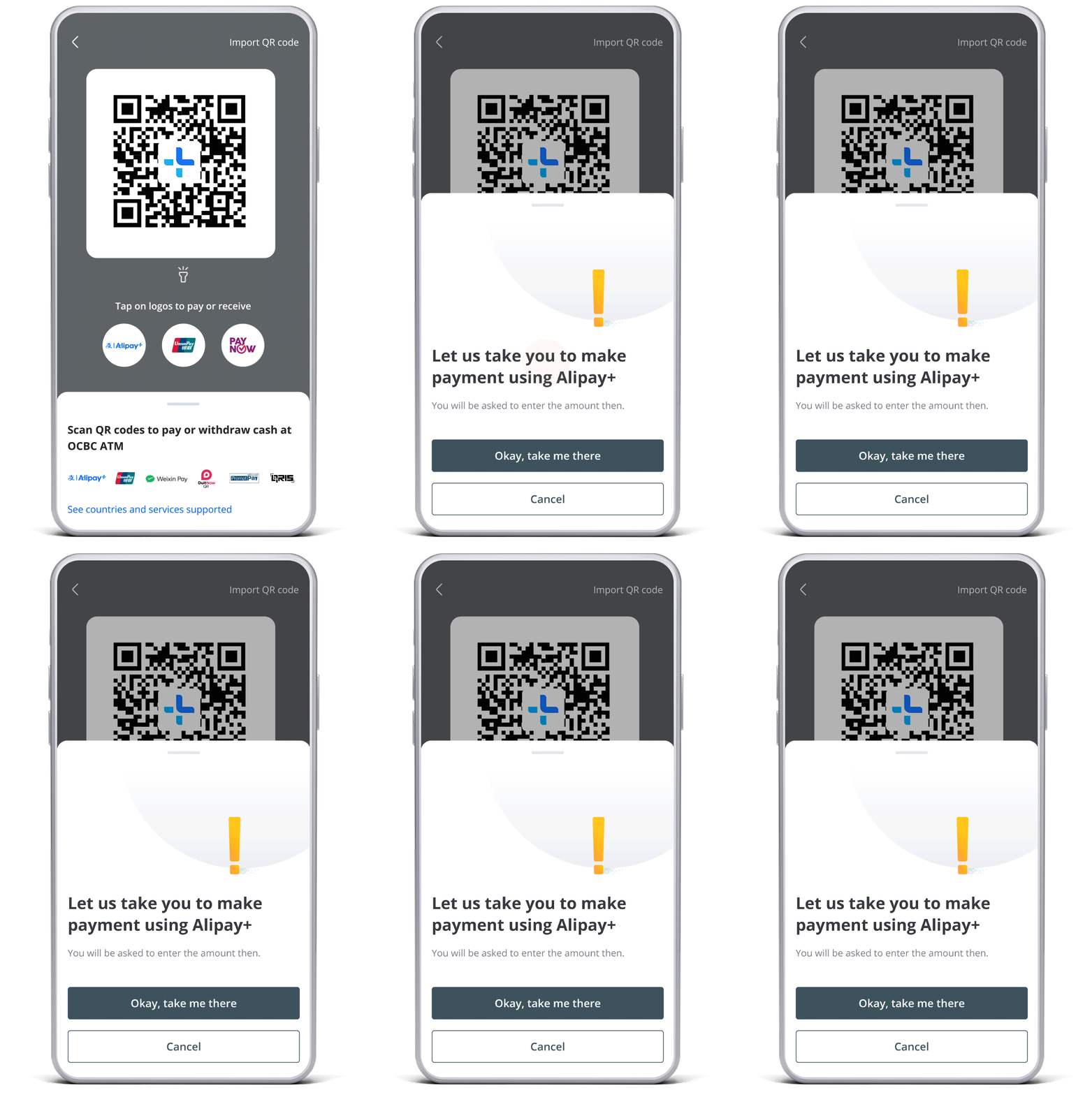
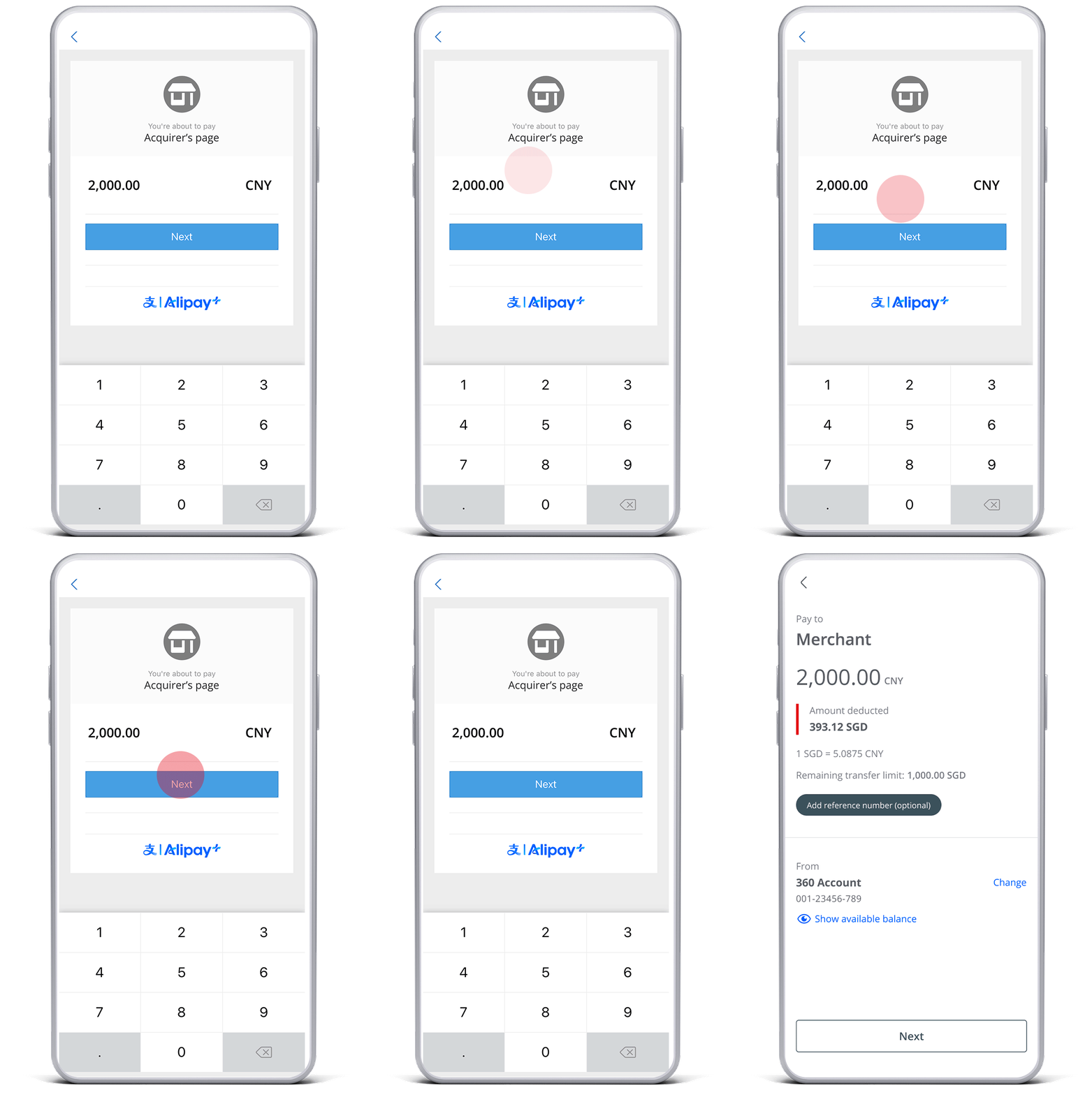
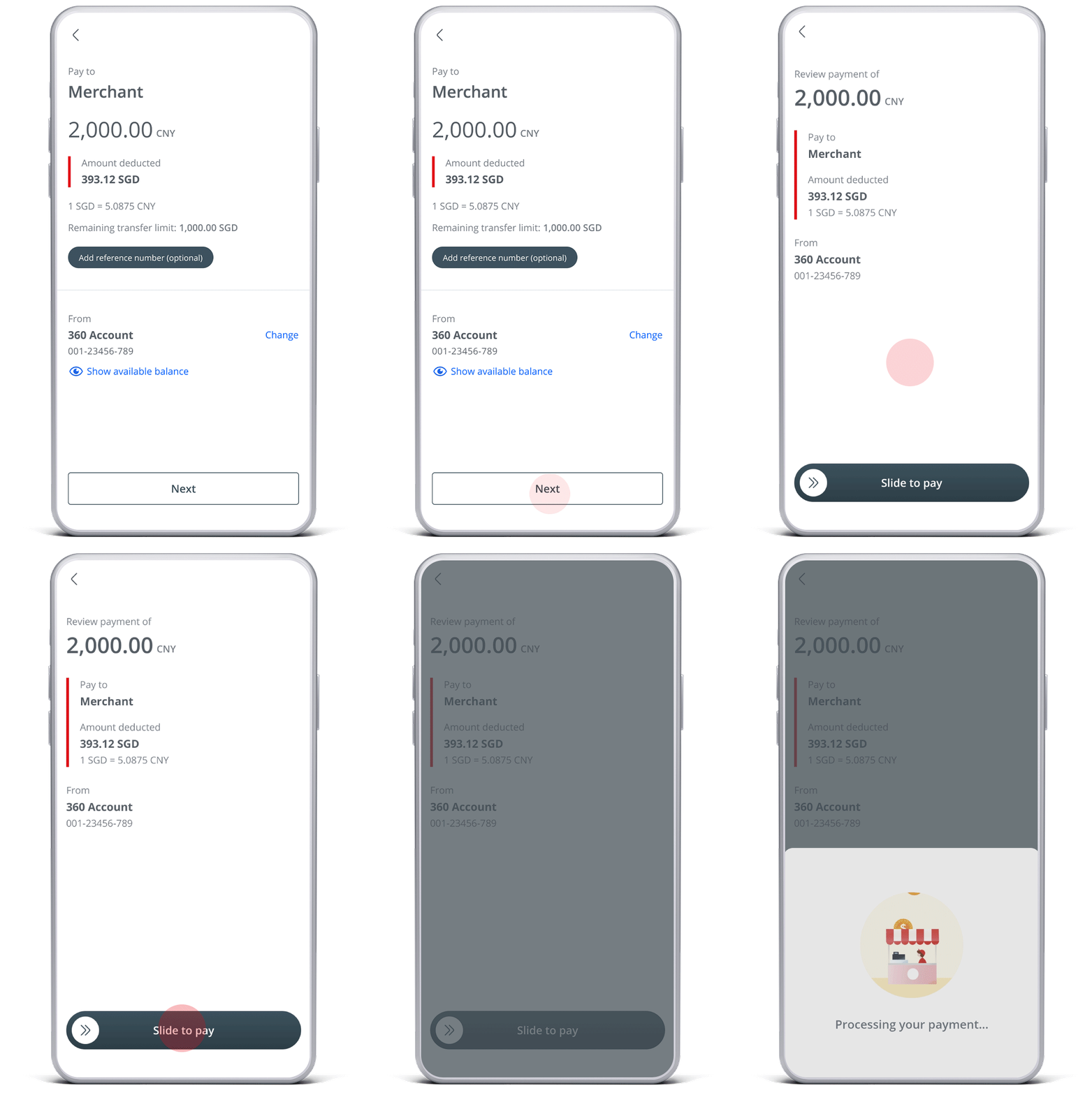
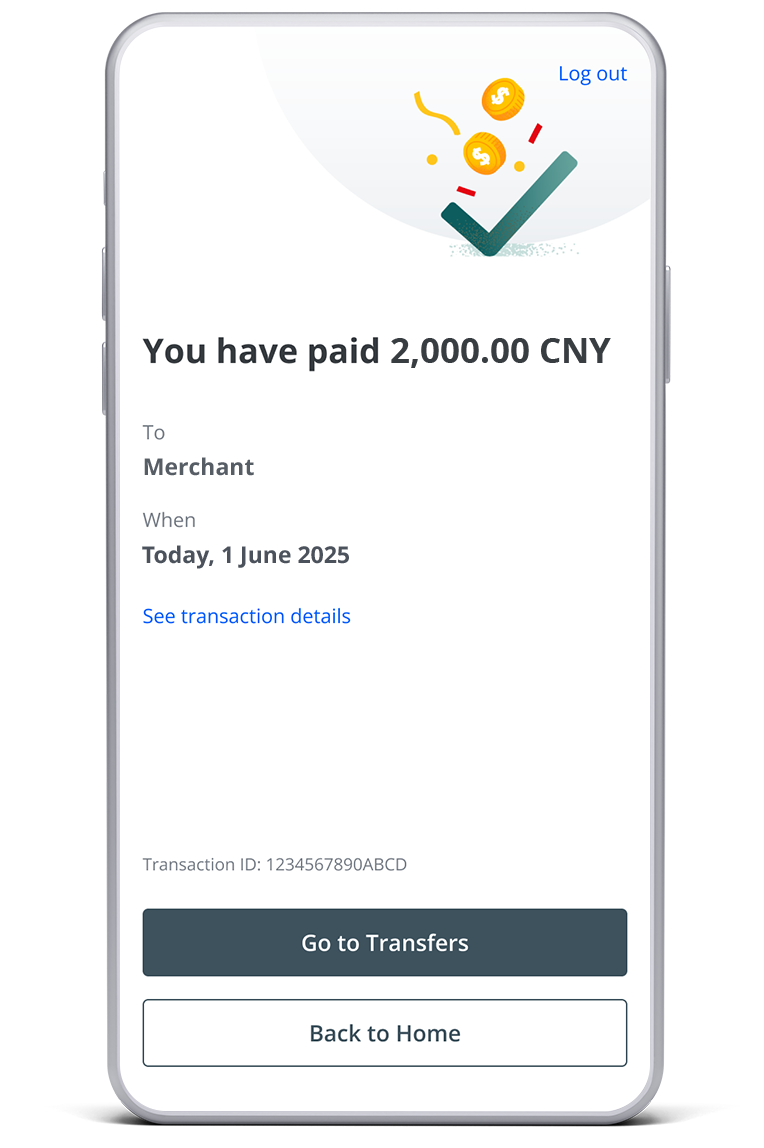
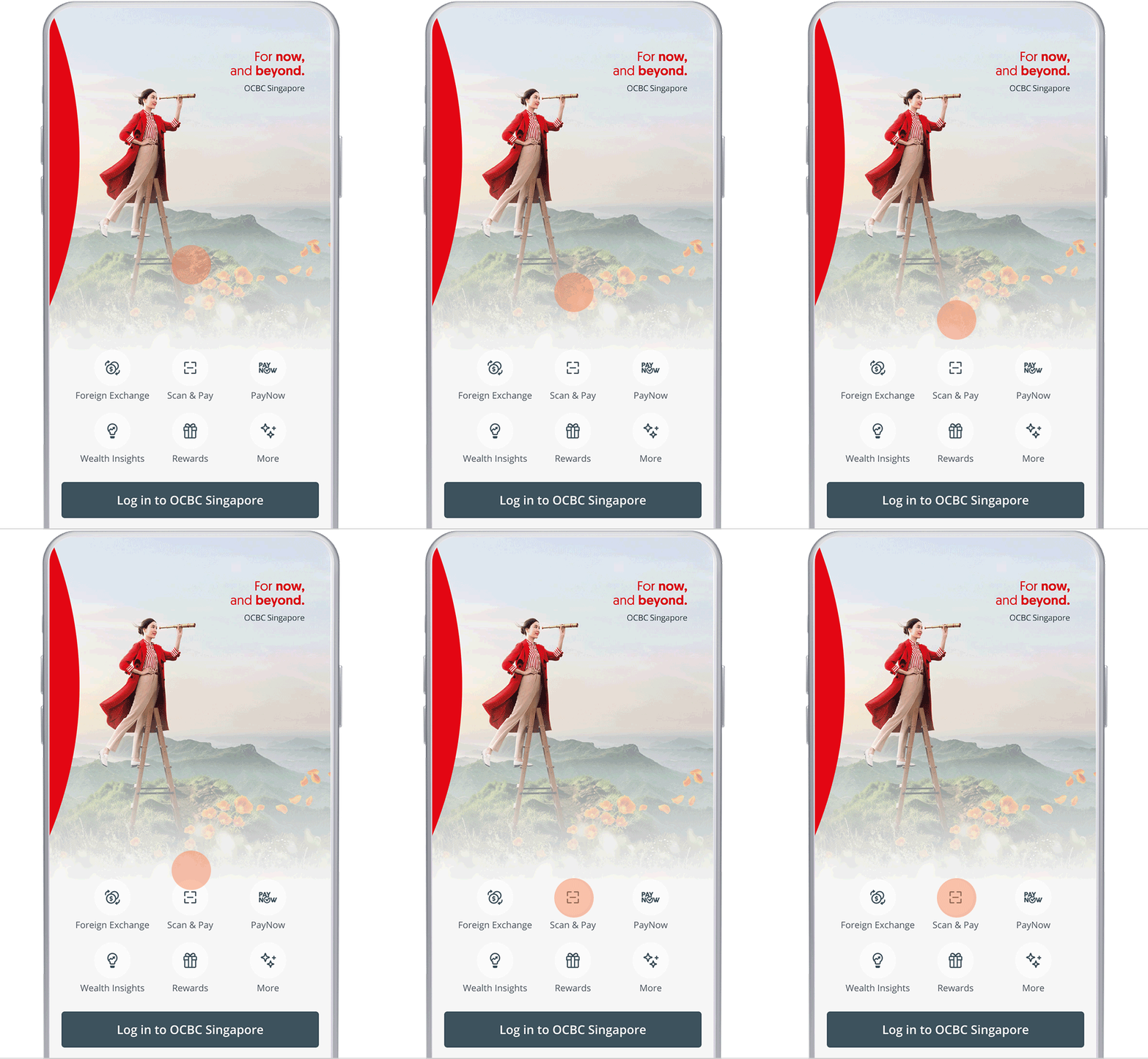
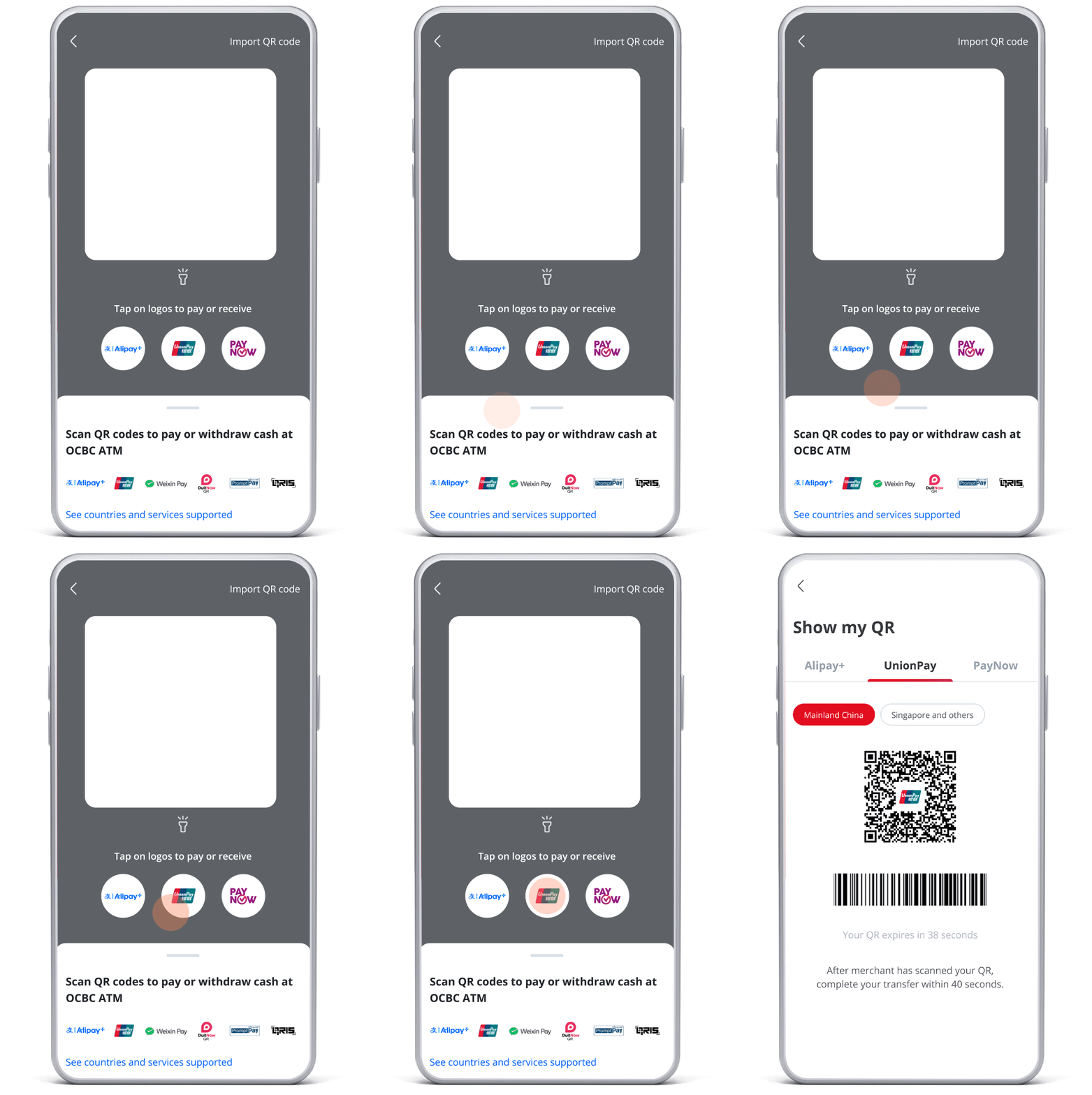
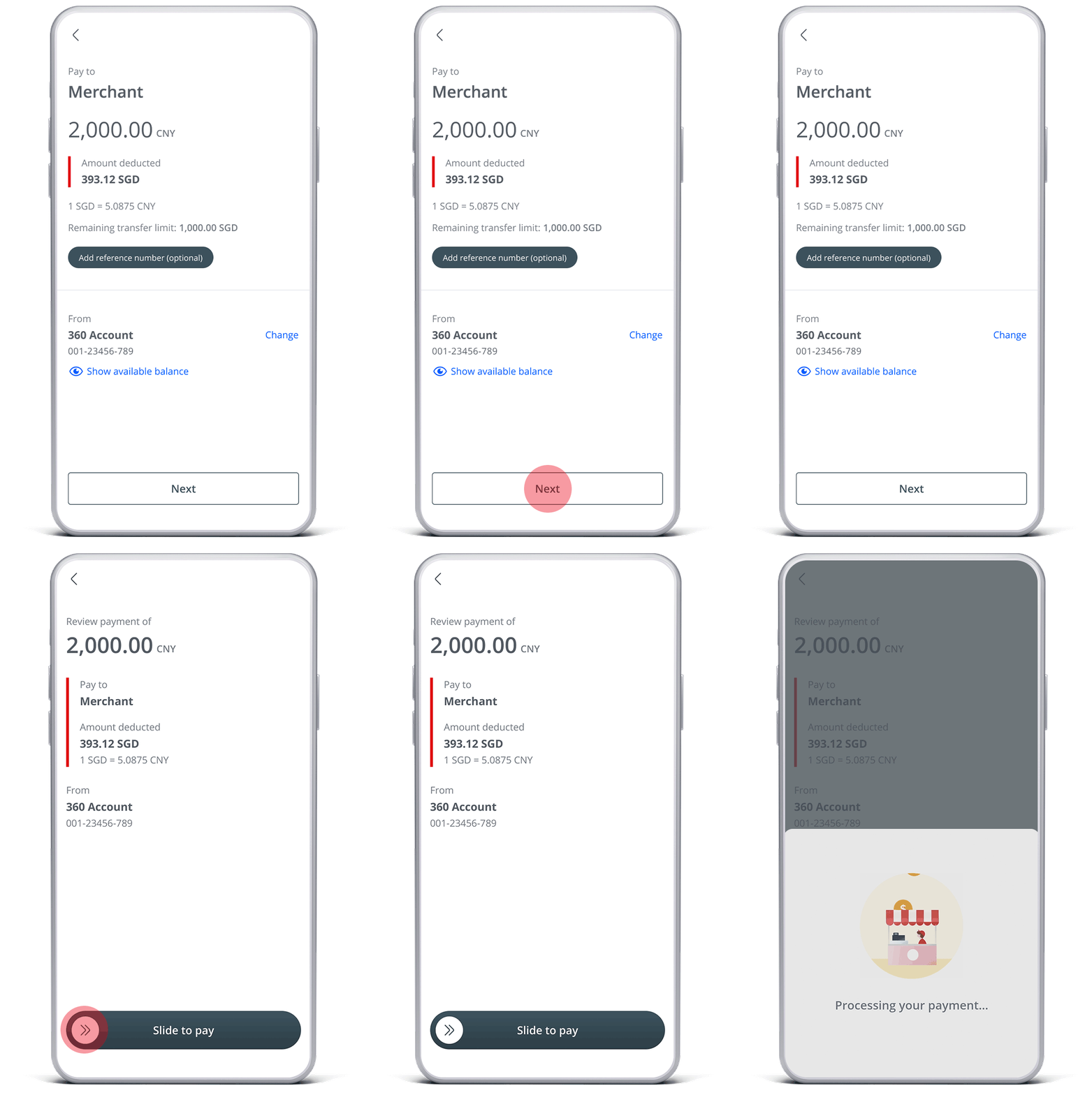
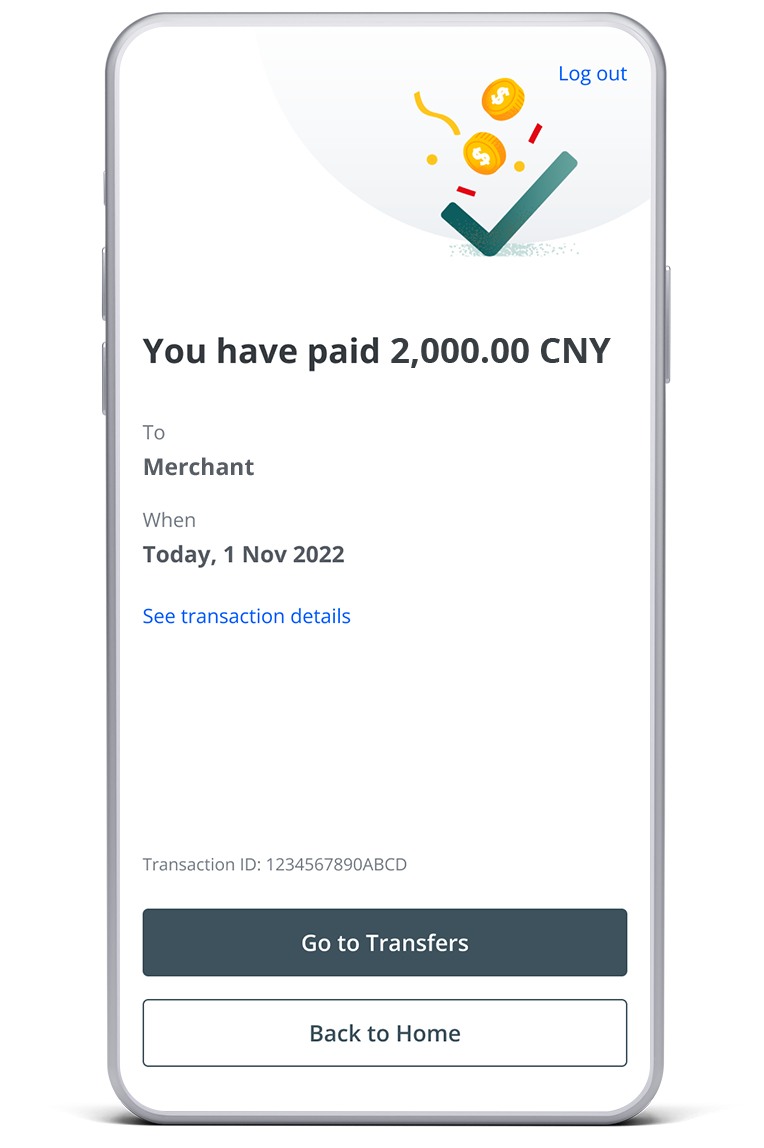
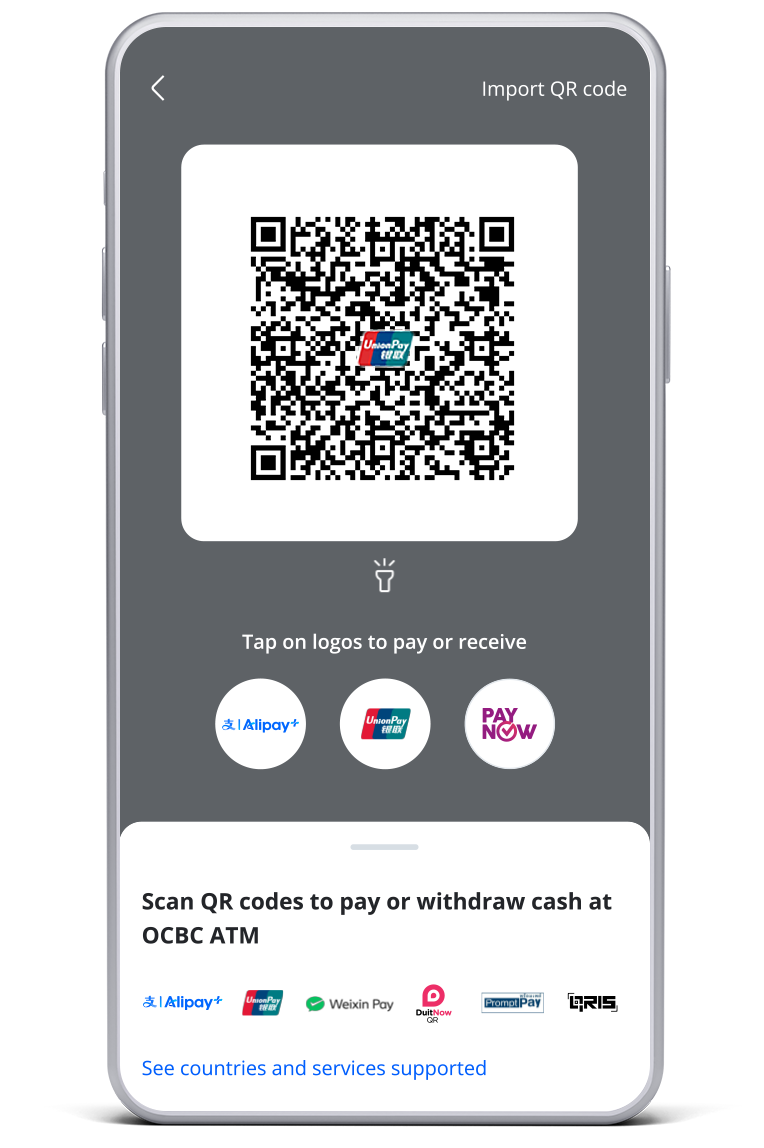
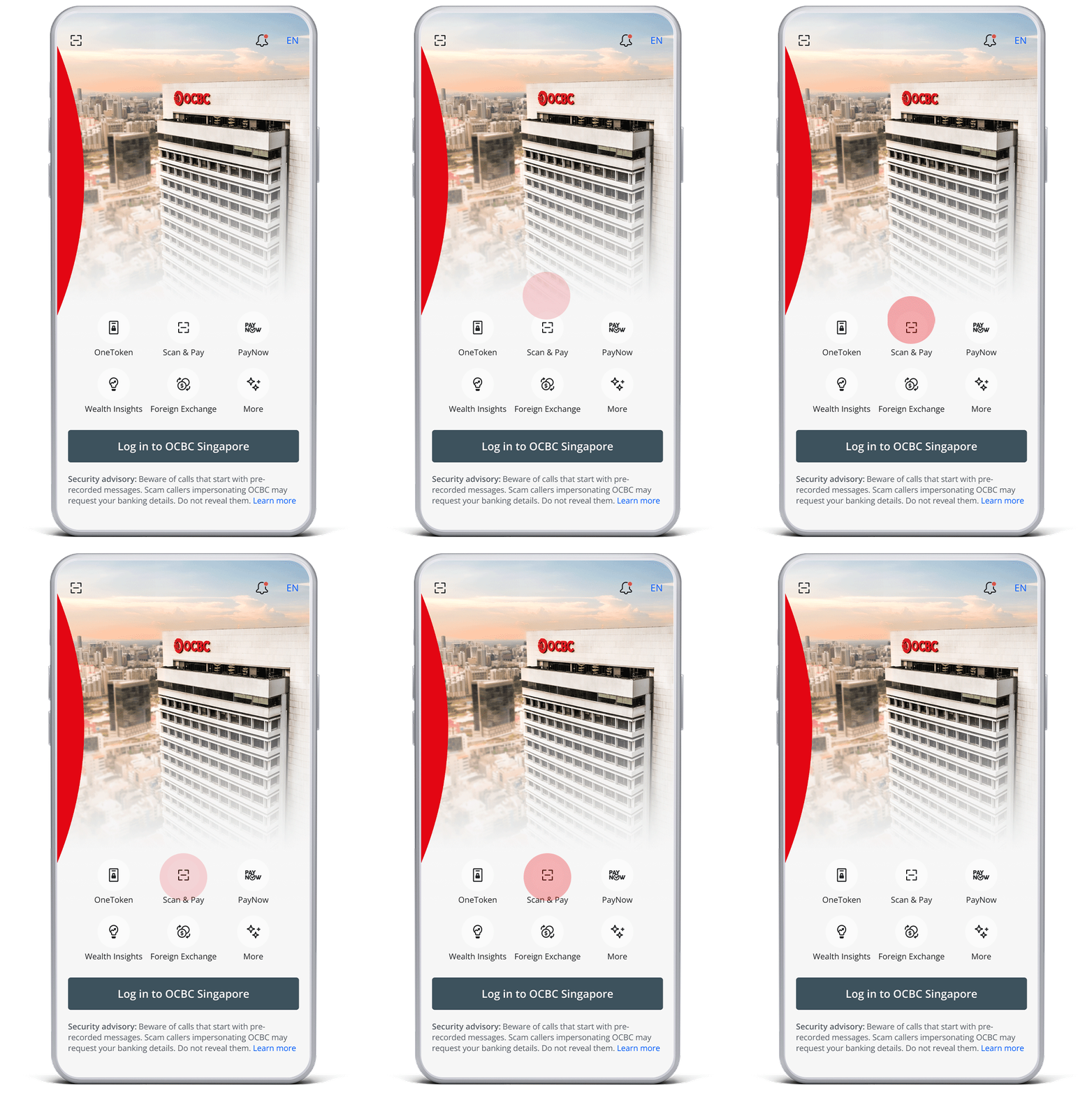
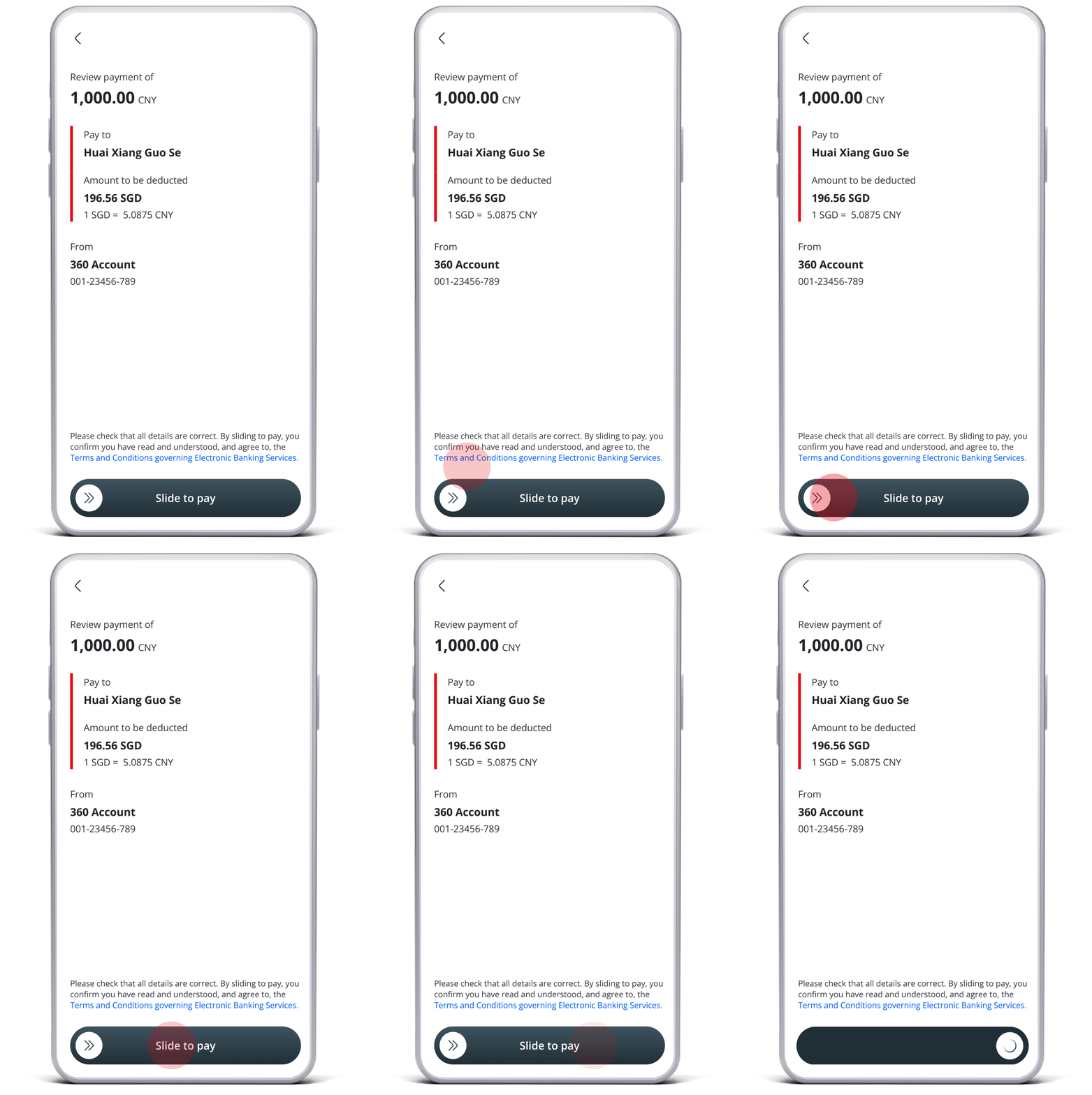
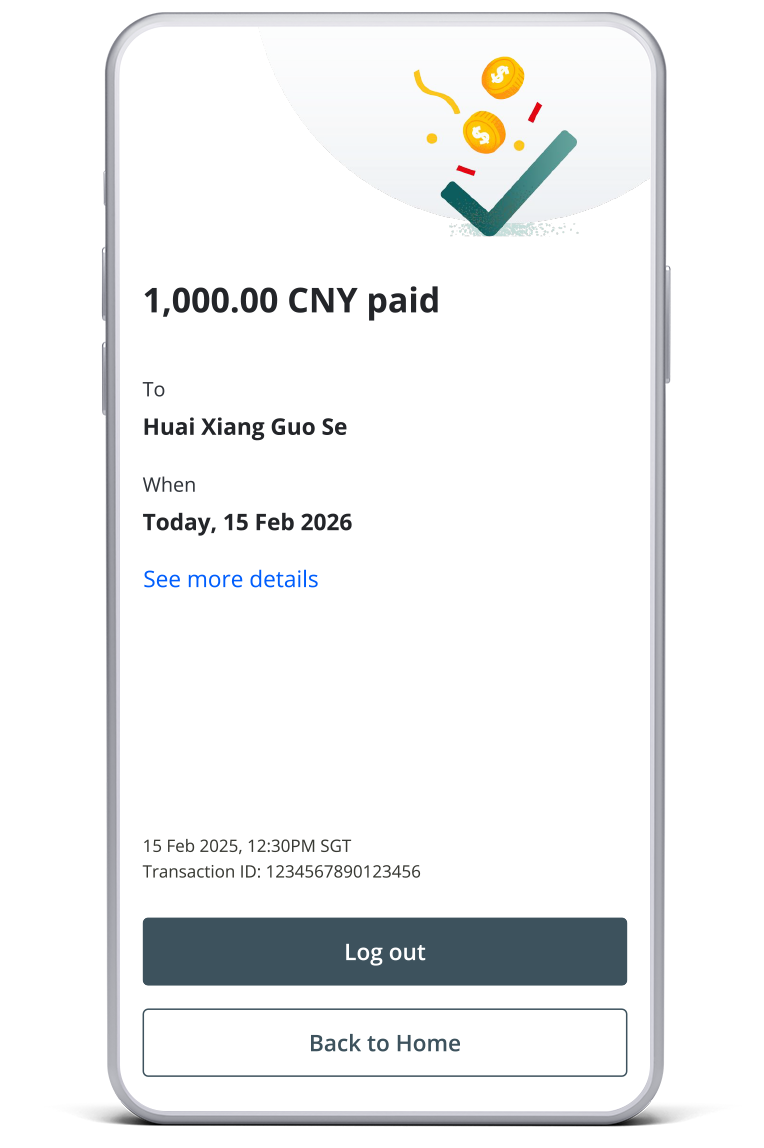
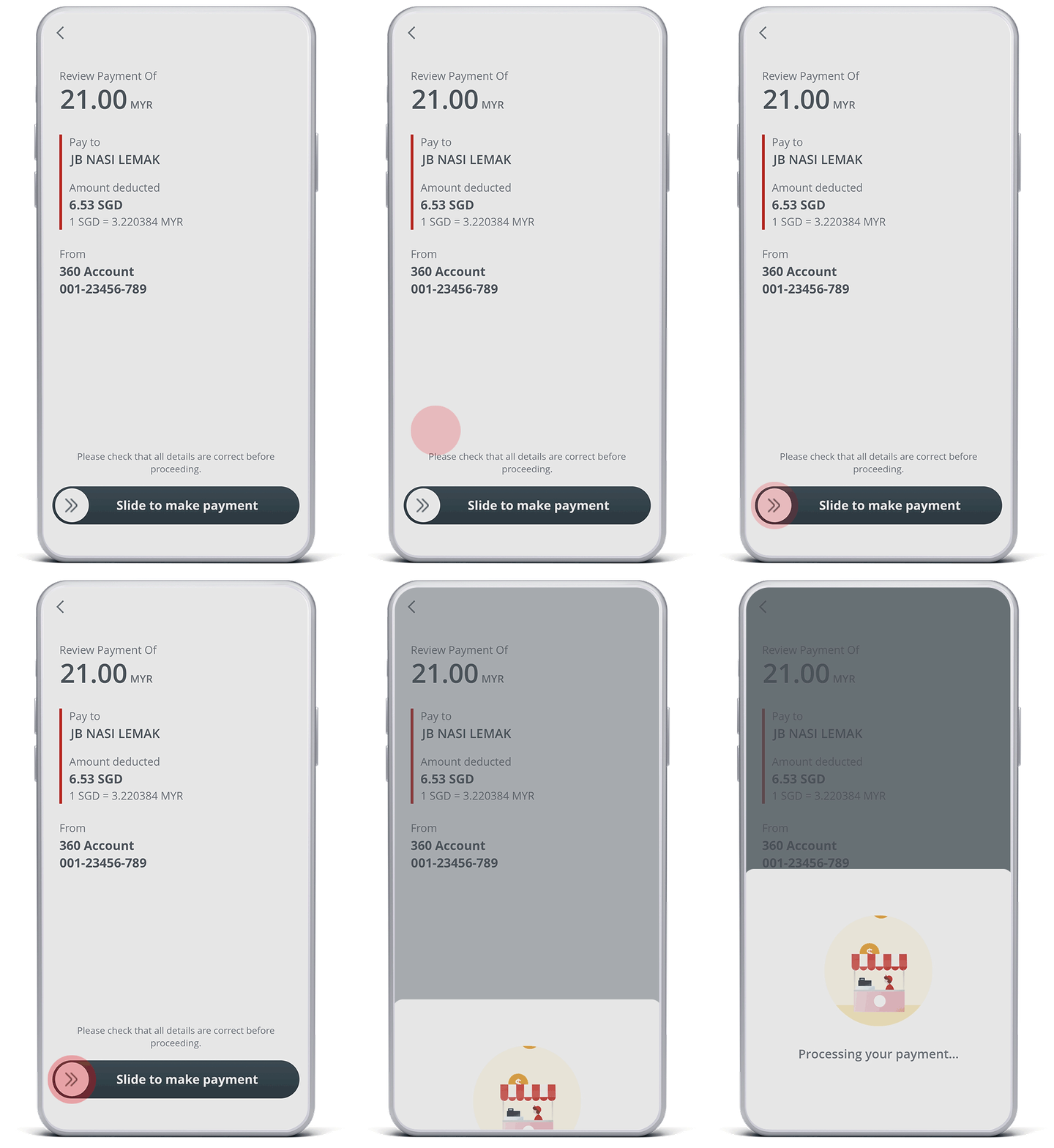
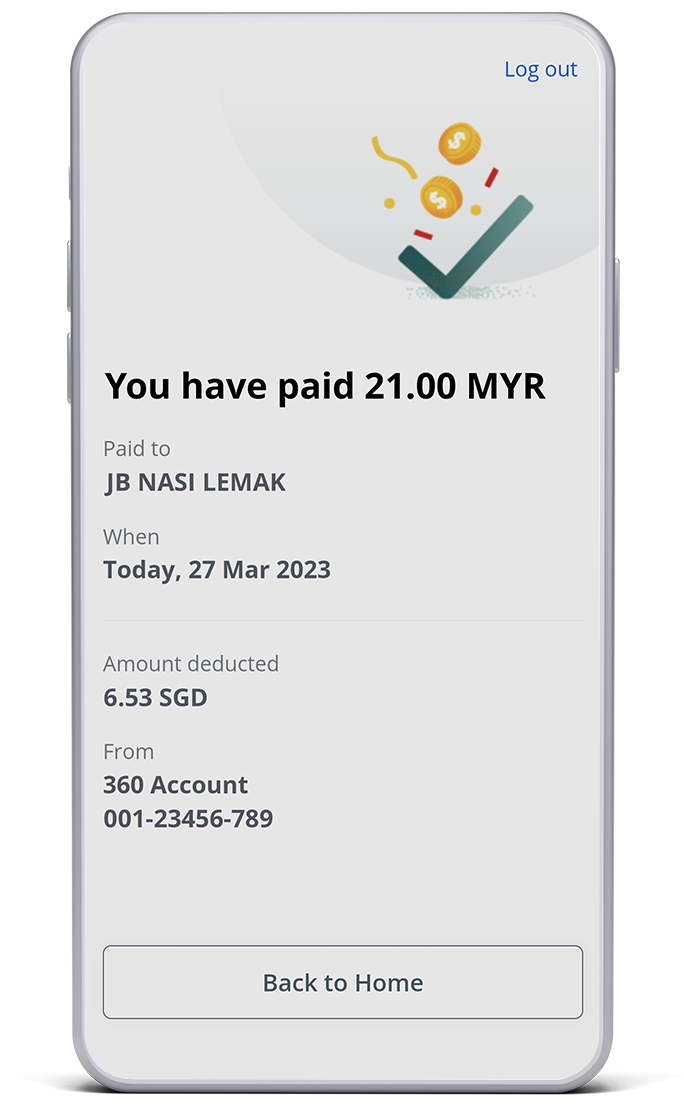
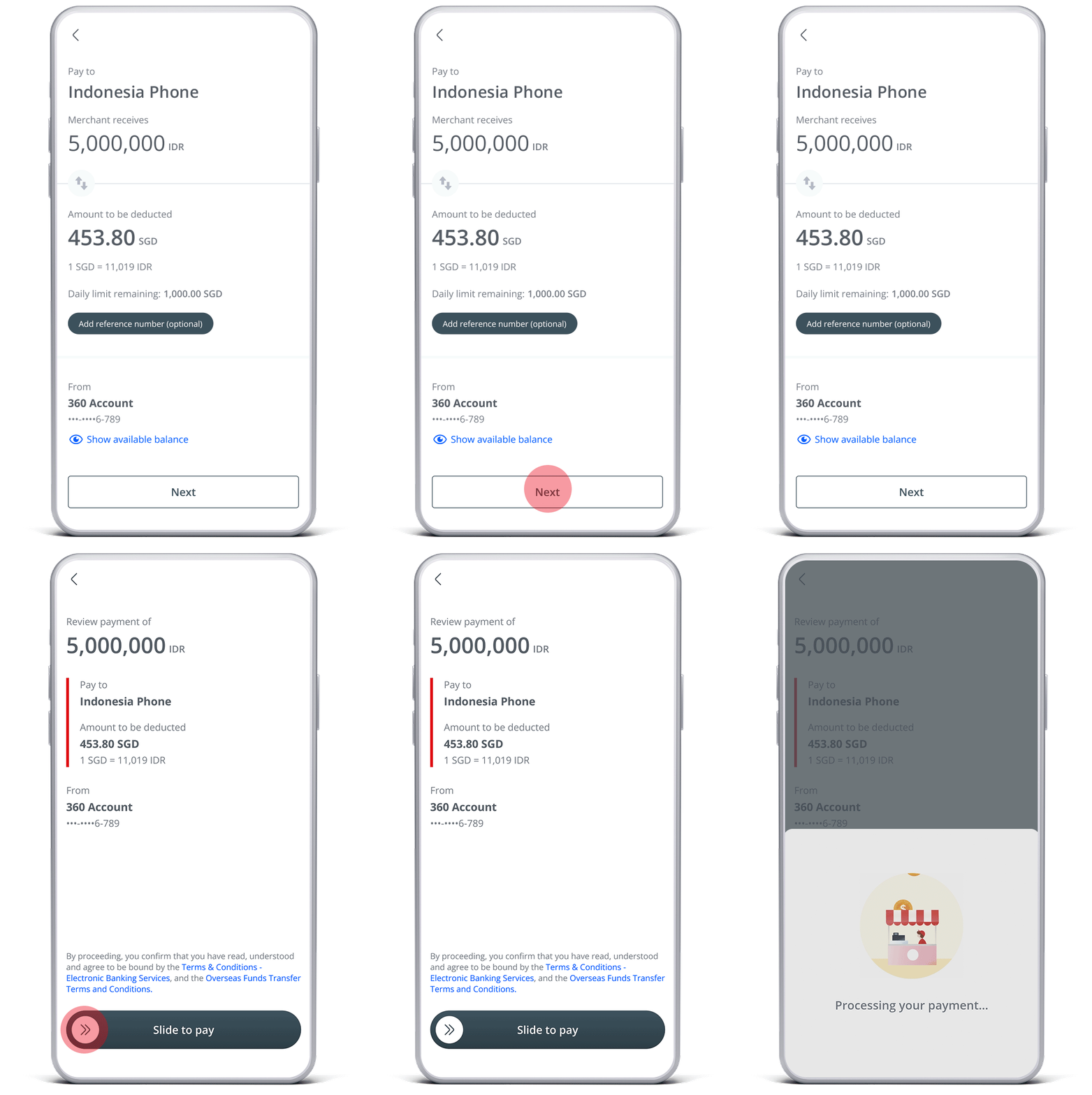
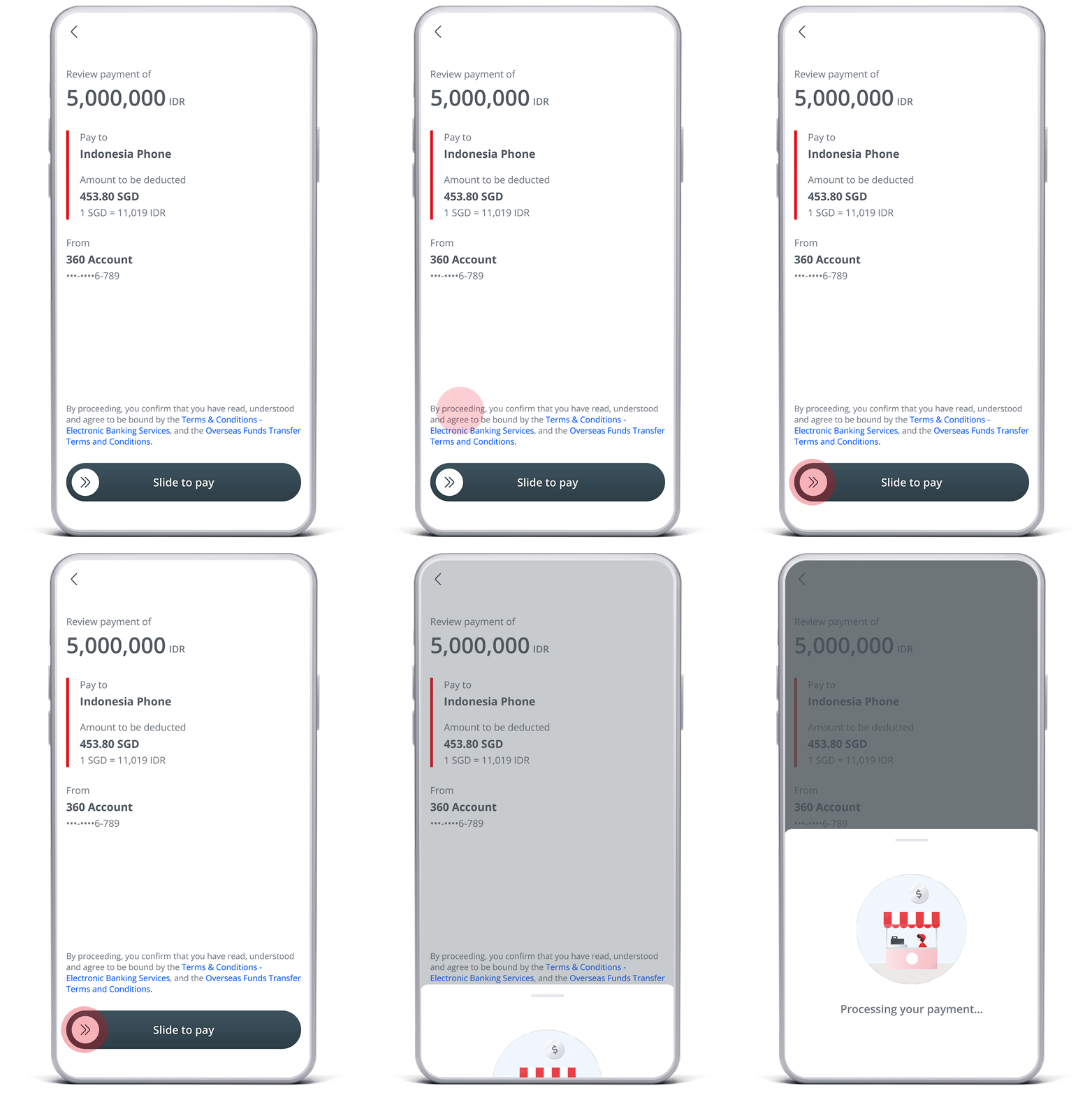
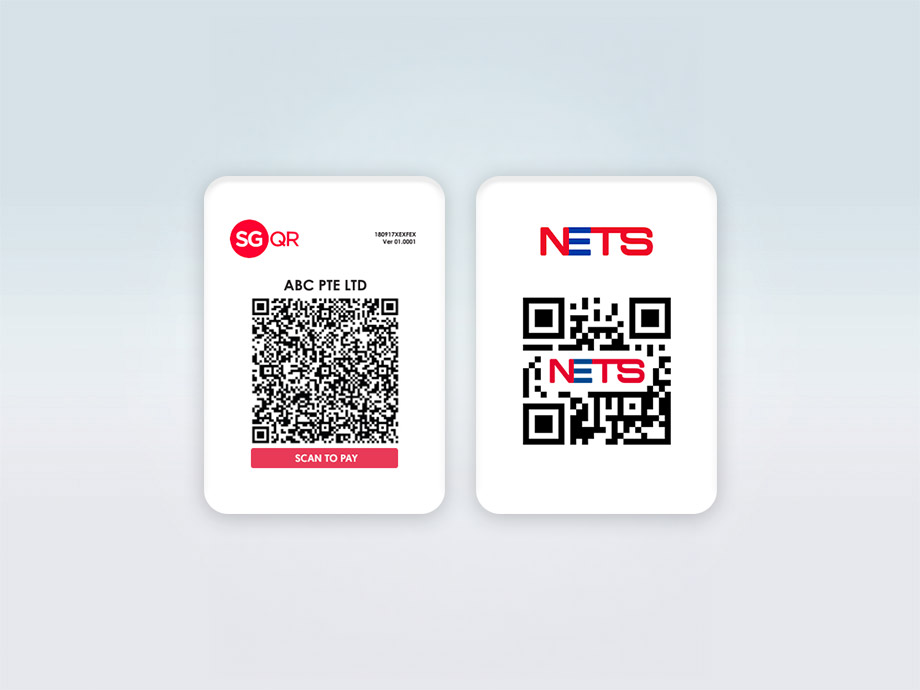
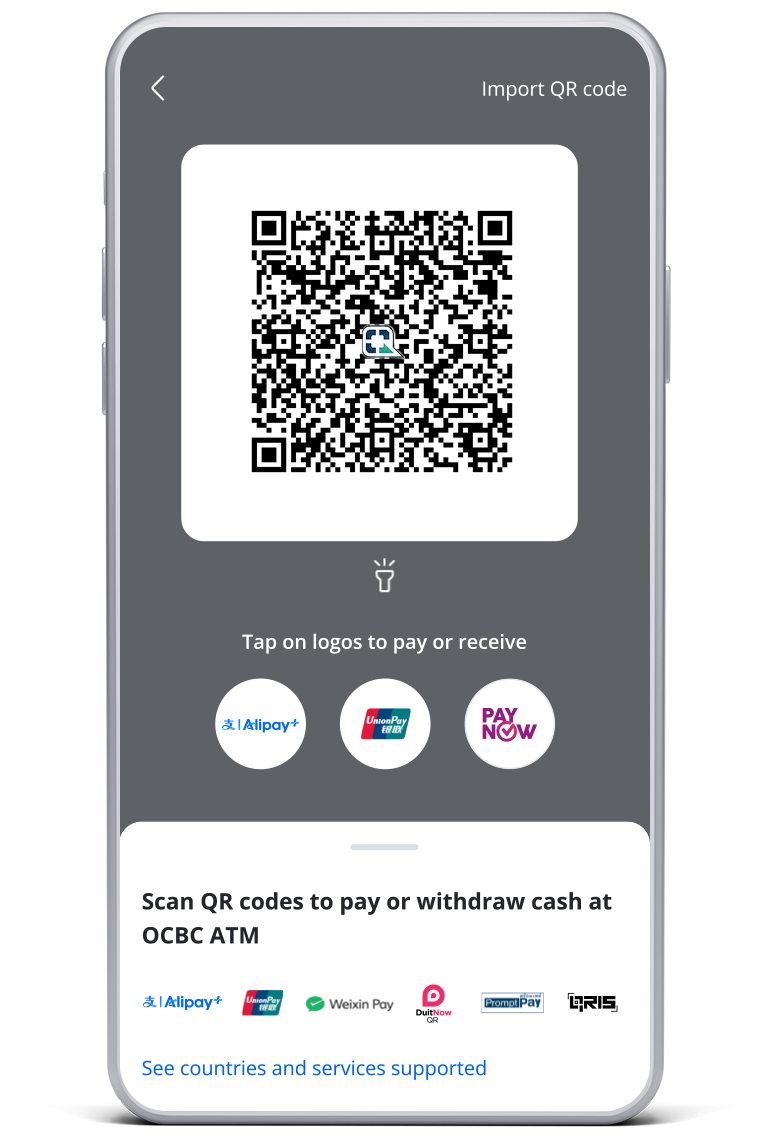
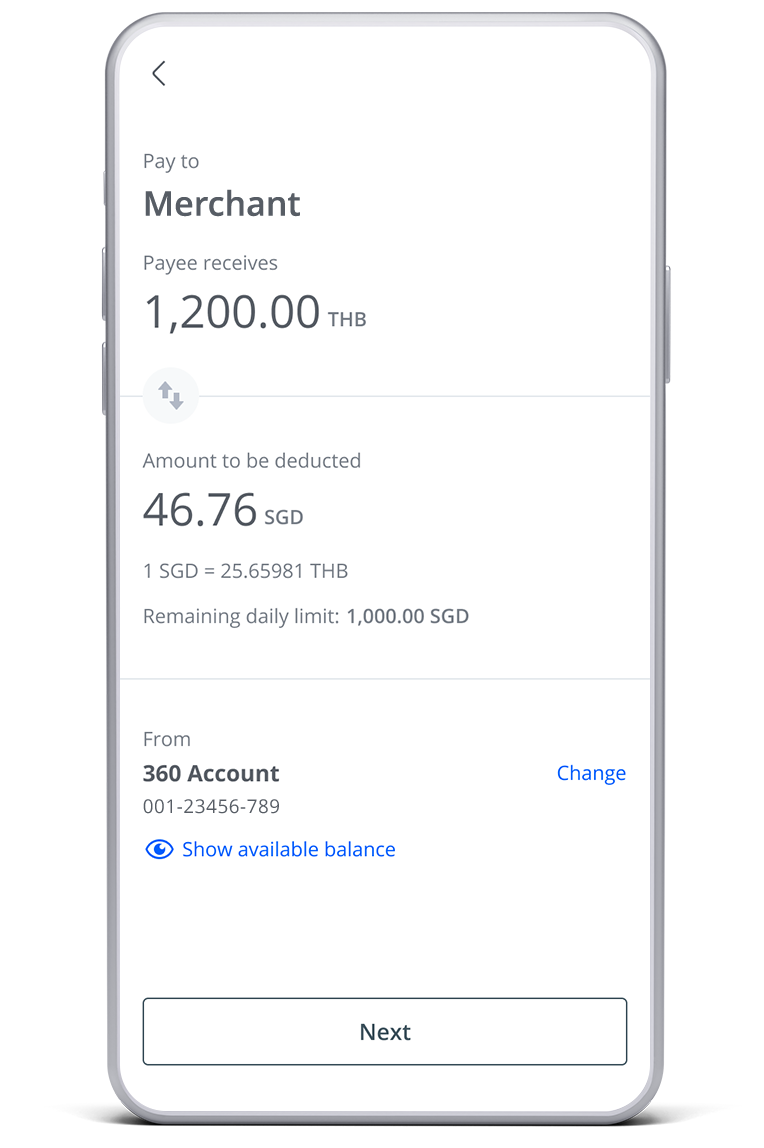
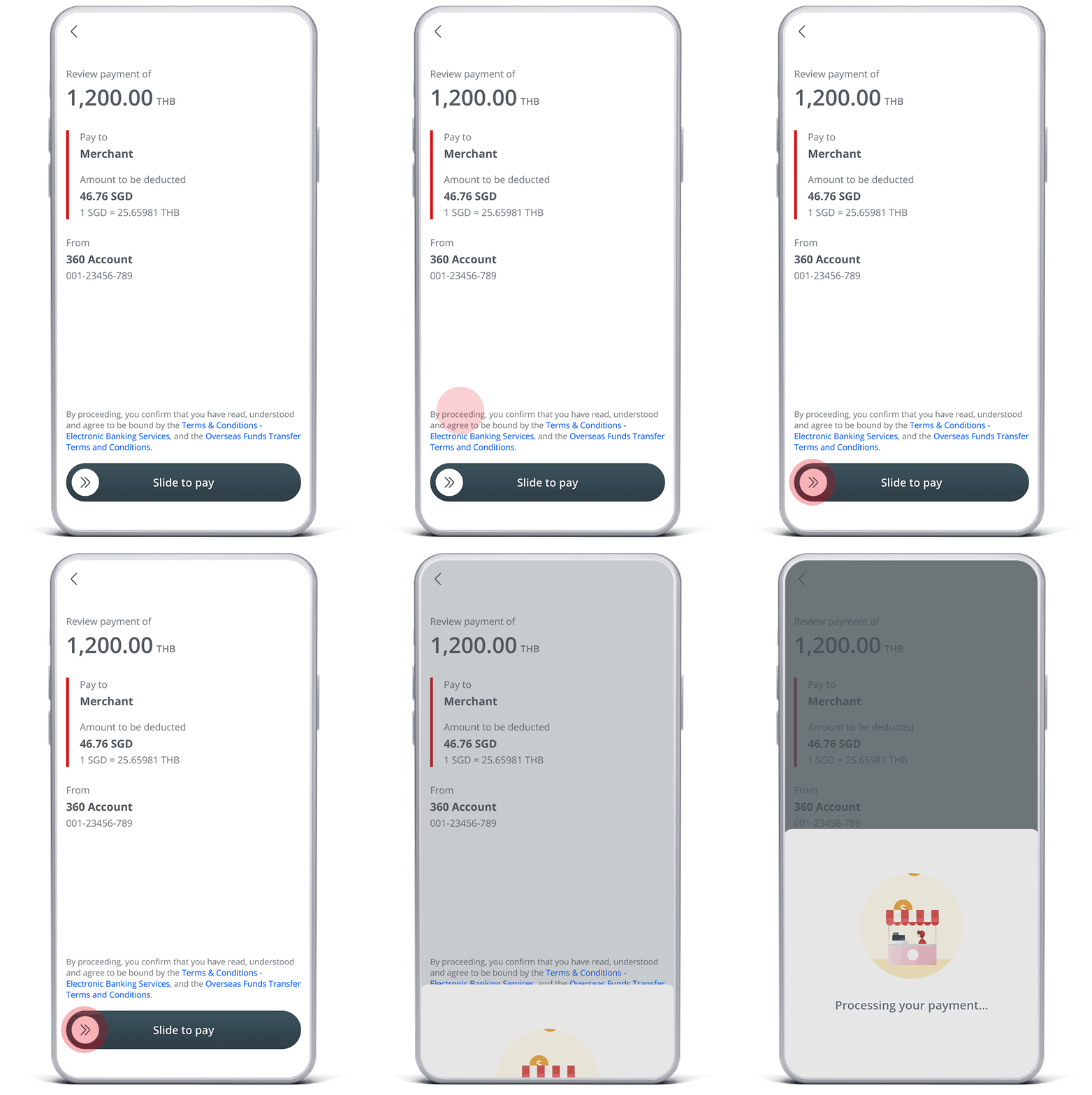
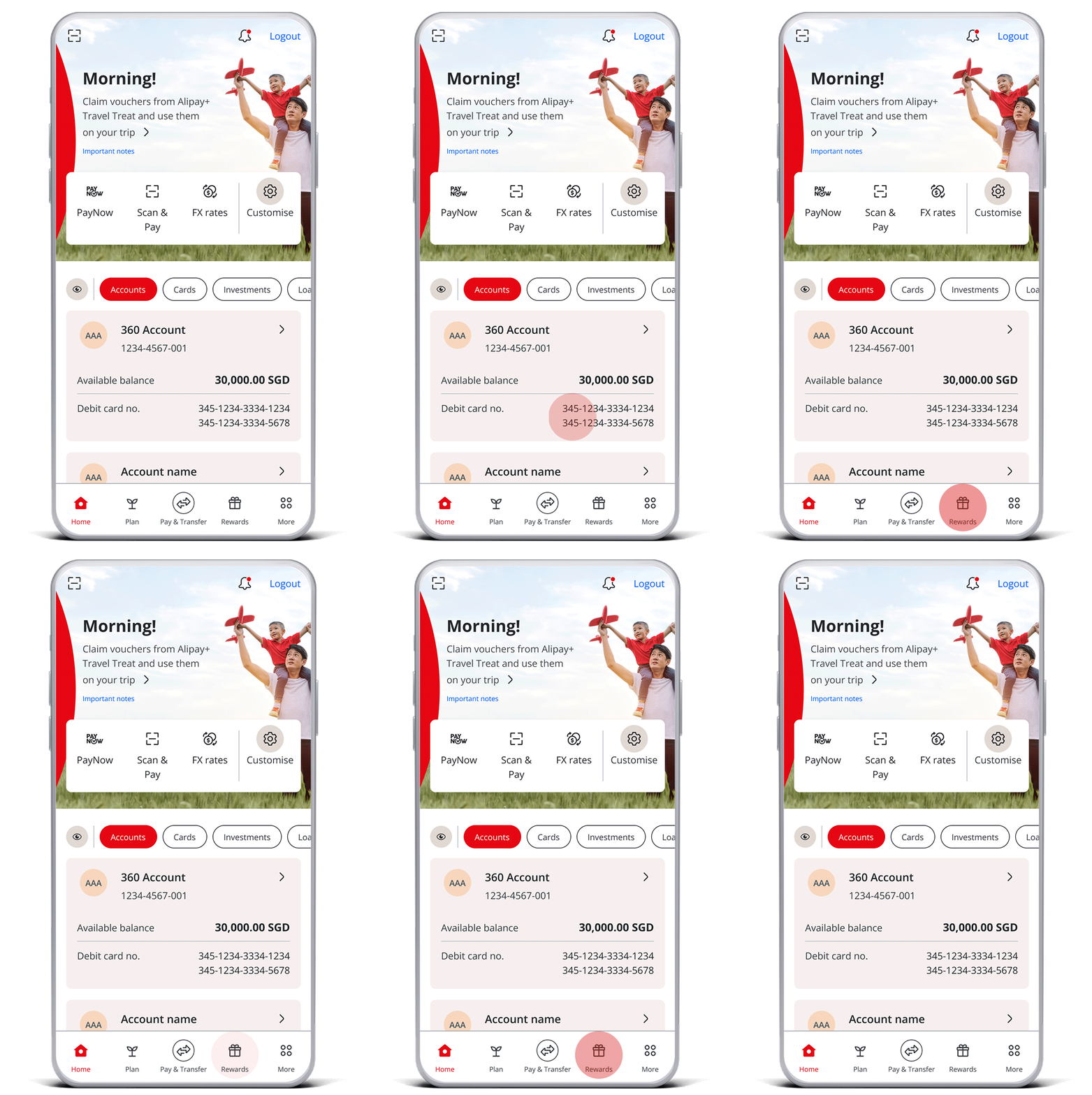
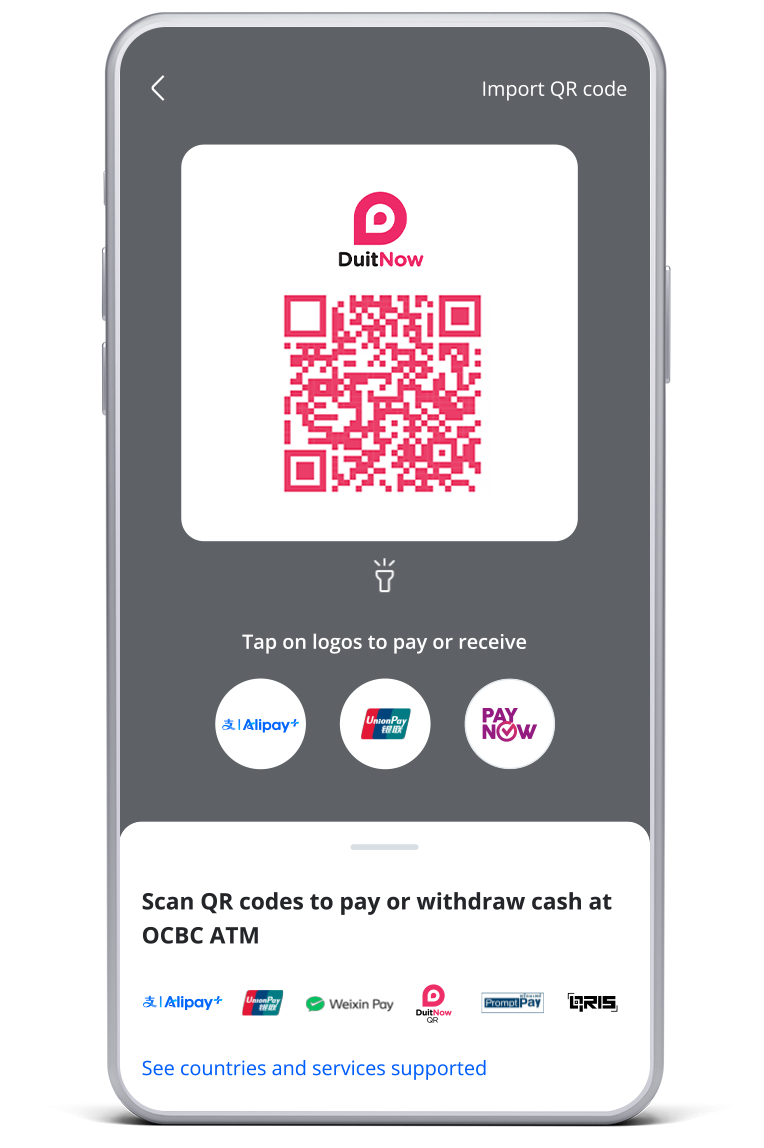
Pay at local merchants including hawker centres and retail shops, simply by scanning a QR code using your OCBC app!

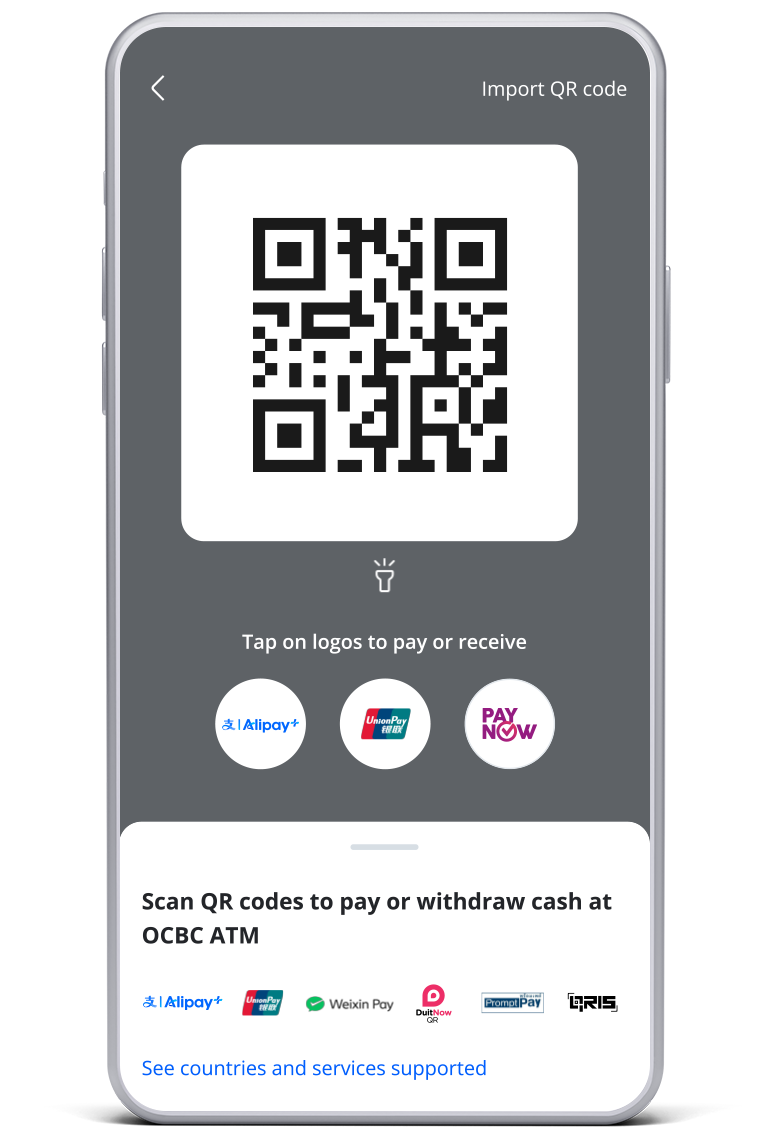
Need cash instead? Simply scan the QR code on the ATM screen with the OCBC app to withdraw cash – no cards required.

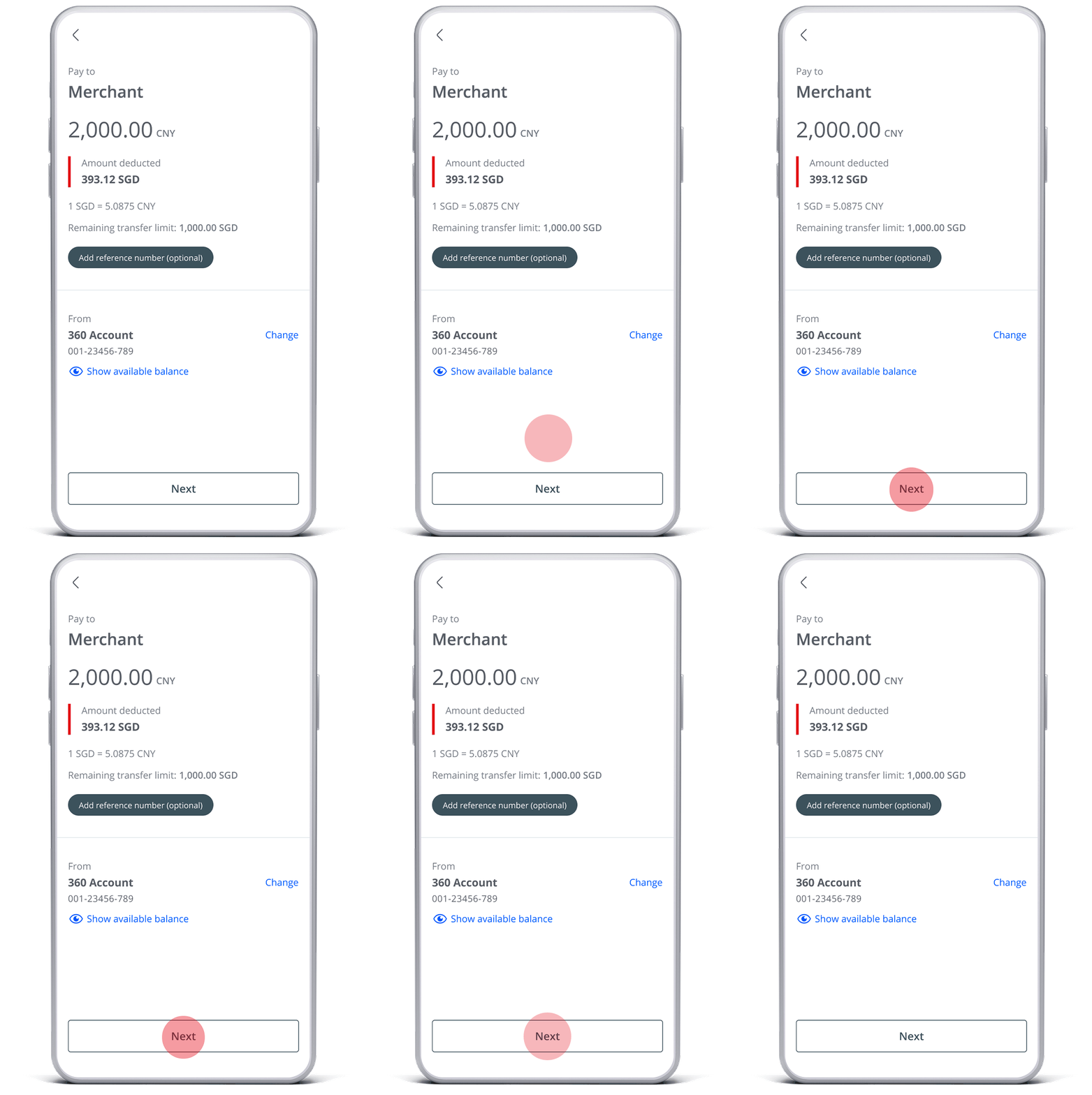
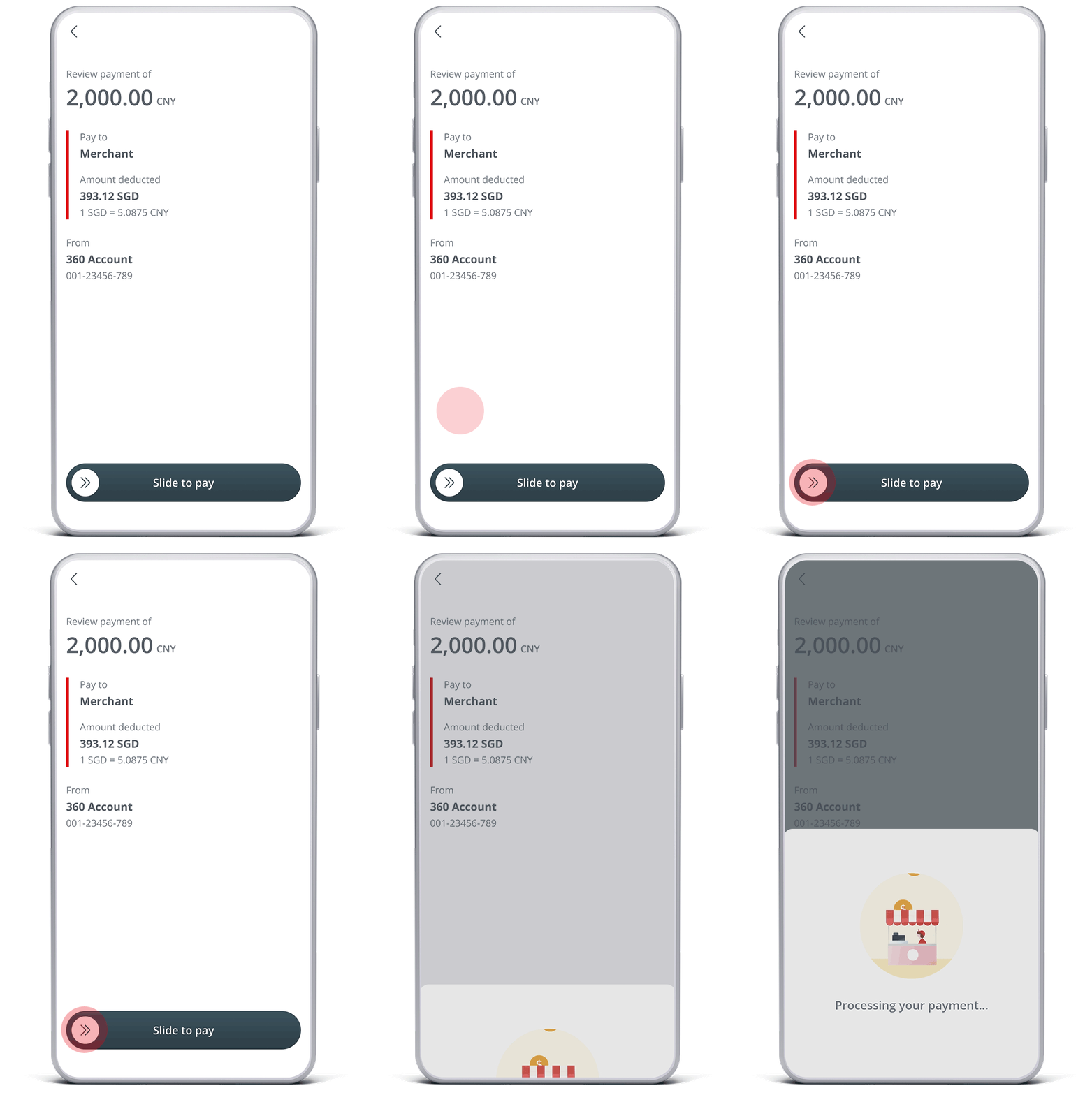
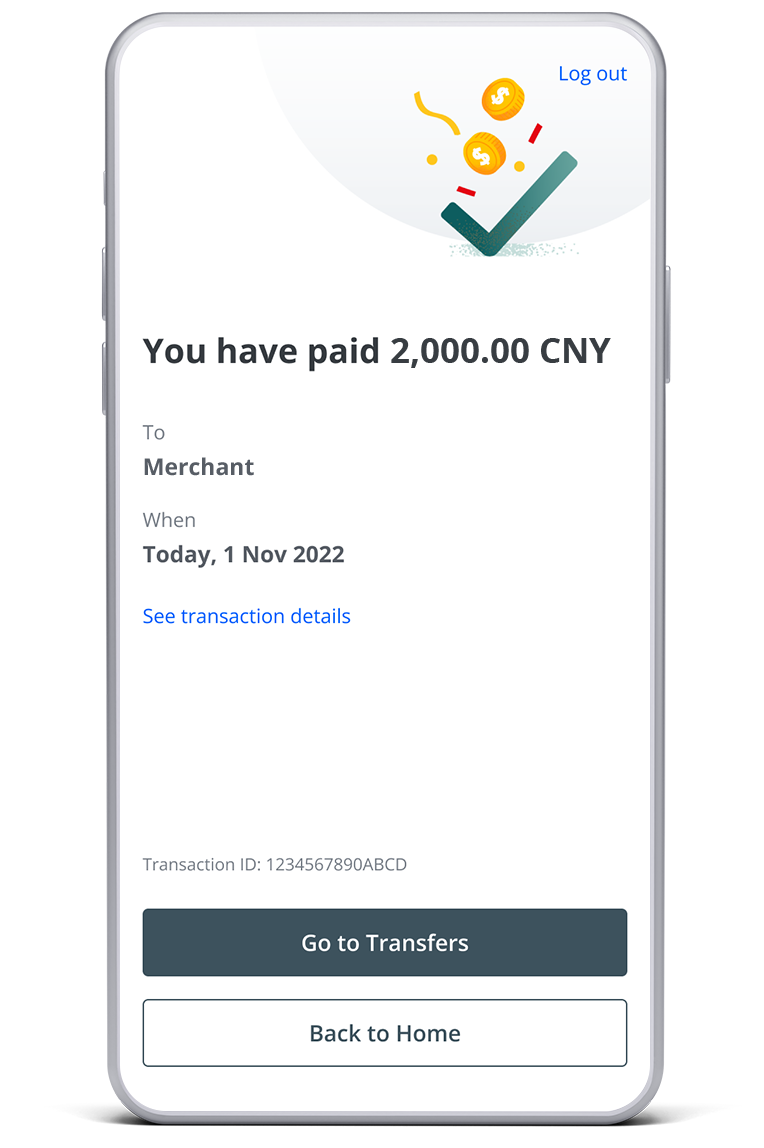
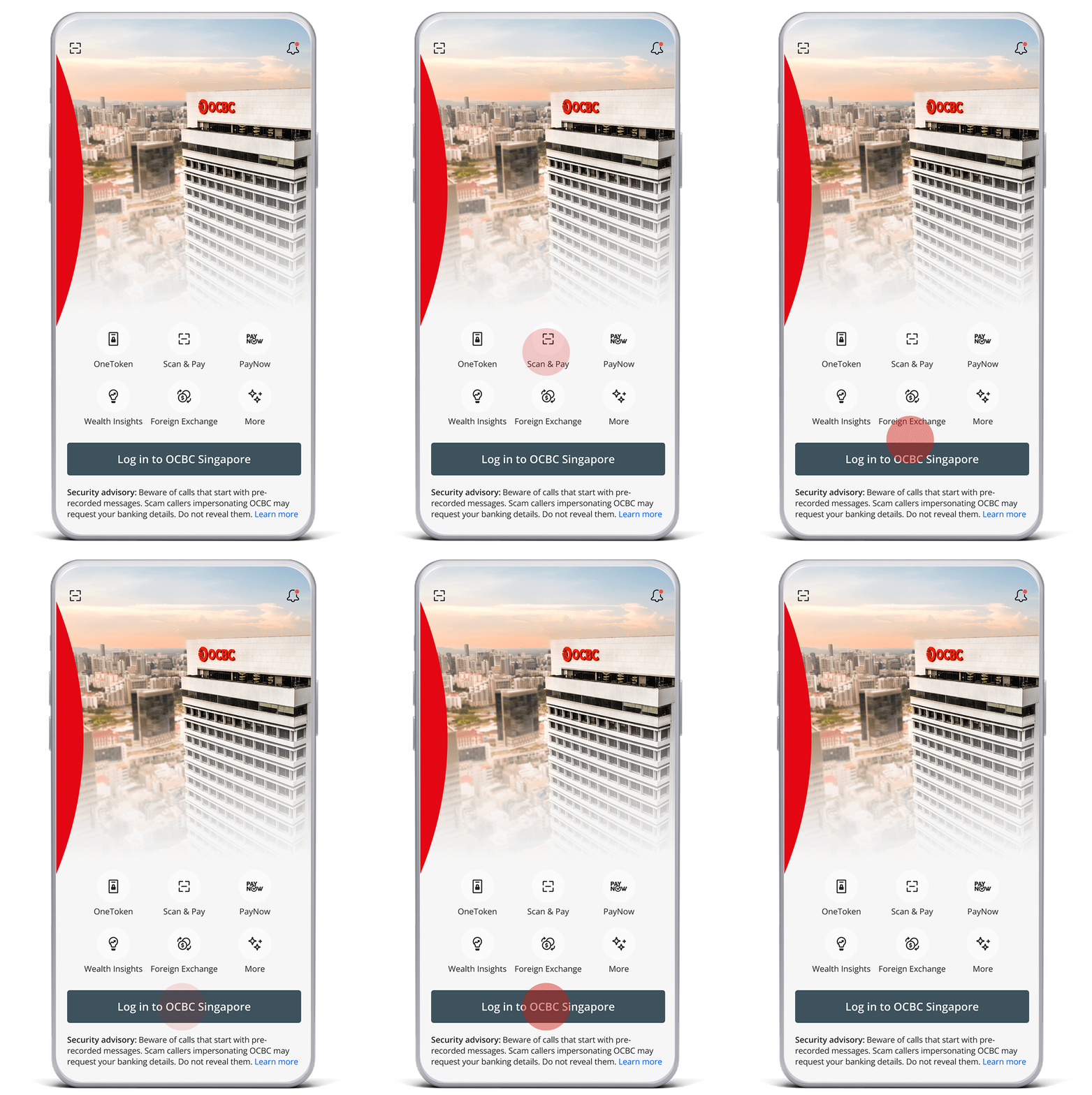
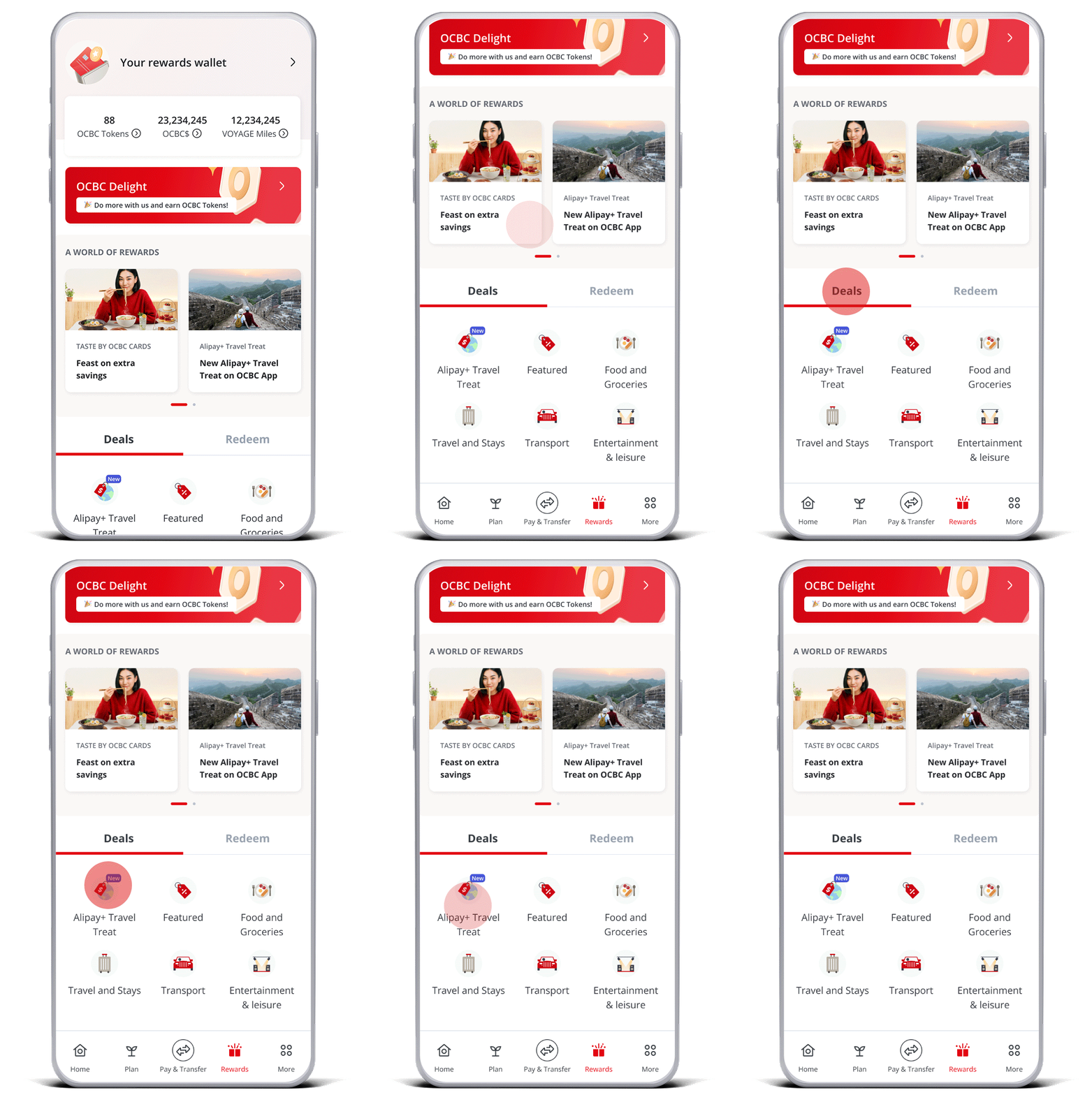
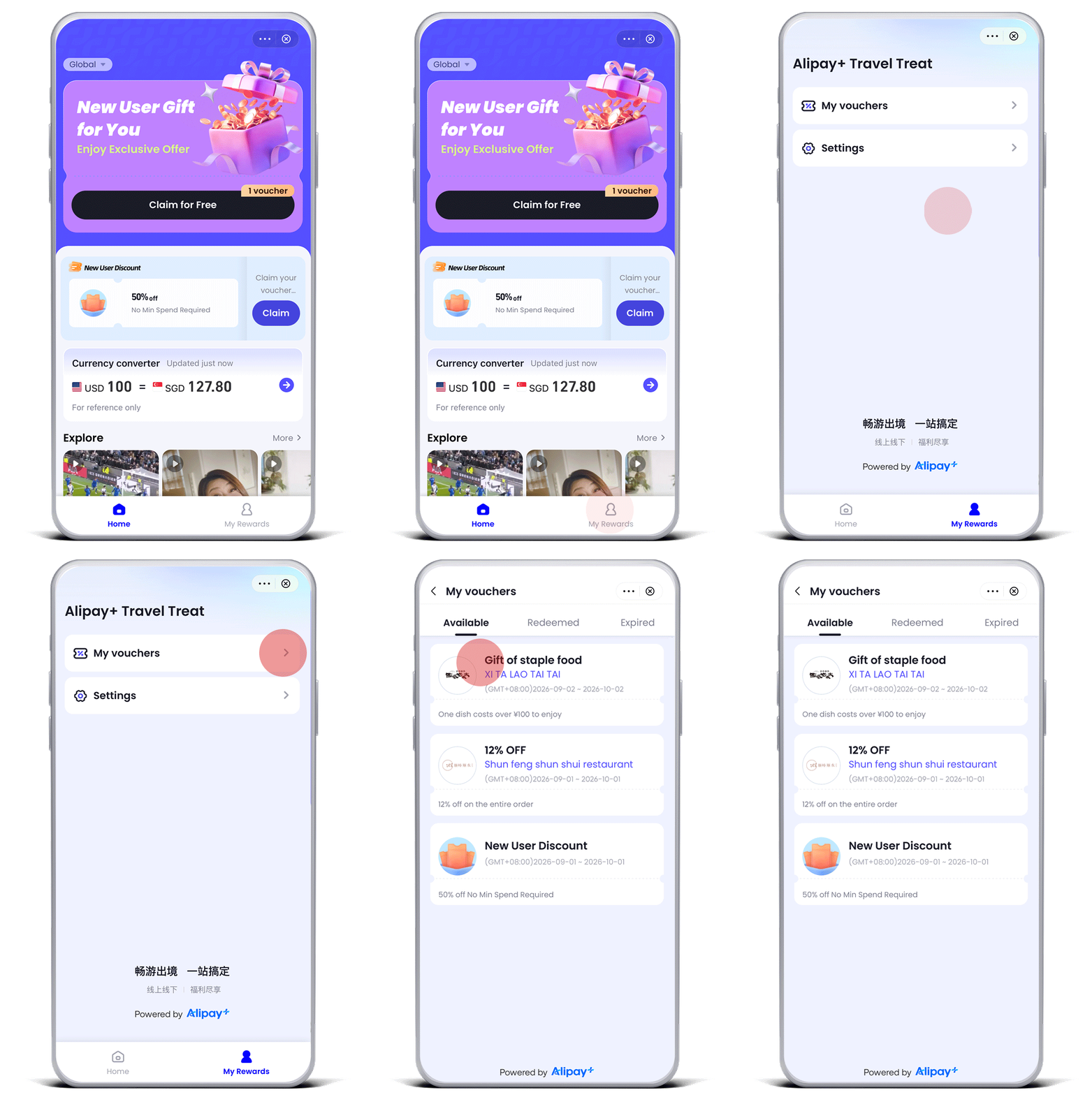
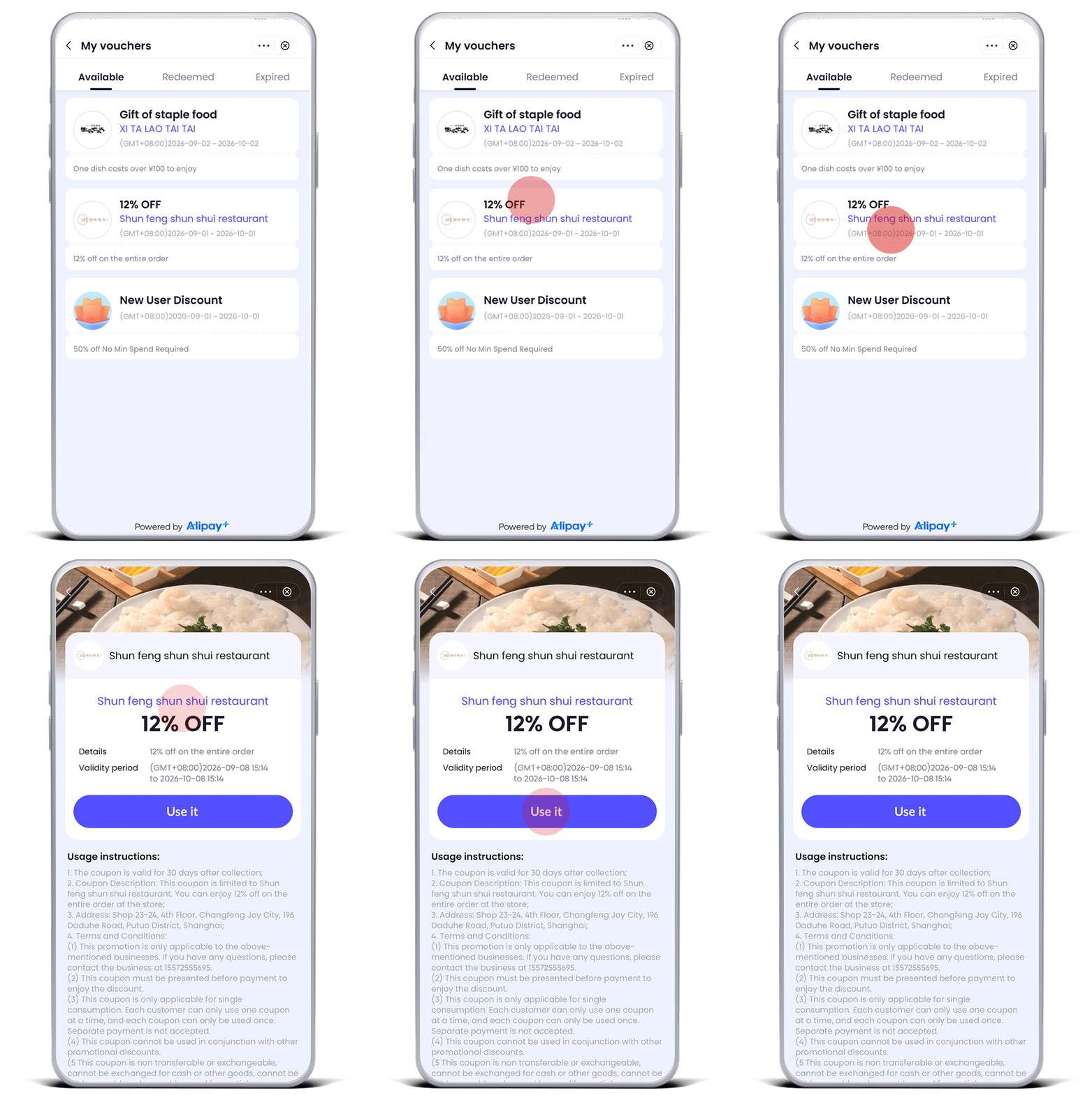
Here’s how:

OTHER PAYMENTS

Bill payments

Pay credit card bills and billing organisations

Bill payments

Pay credit card bills and billing organisations

GIRO

Automate your payments via GIRO

GIRO

Automate your payments via GIRO

RECOGNISED BY LEADING INSTITUTIONS FOR PUTTING YOU FIRST

1

2

3

4

5

6

1

2

3

4

5

6

DISCOVER MORE FEATURES

Experience the OCBC app now

Available on Apple App Store, Google Play and Huawei App Gallery

Learn more

Available on Apple App Store, Google Play and Huawei App Gallery

Learn more

Available on Apple App Store, Google Play and Huawei App Gallery

Learn more

Available on Apple App Store, Google Play and Huawei App Gallery

Learn more

FAQs
Common questions
What are the key features in the OCBC app?

We are constantly enhancing the OCBC app experience and cannot wait to get the cool new stuff out for you to enjoy! This is why we are progressively building and releasing these updates. We hope that you enjoy the new experience, and encourage you share your feedback with us. 

Your Activity

  1. What is “Your activity” on the Account Summary dashboard?

    • You can view all your latest transactions across all your Current, Savings and card accounts at one glance in “Your activity”. This includes your last 7 transactions from the past 7 days (including today).
    • Tap on “See more” to view all transactions from the past 7 days. You may also tap on a transaction to view more details, as well as links to actions such as viewing overall spending activity on Money In$ights or to Raise a dispute (applicable for credit cards).
    • Please note that only posted transactions will appear in “Your activity”, as well as in account transaction history (see point 5 below). There may be a lead time between when the transaction is performed and shown on the dashboard.
  2. How do I view my transaction history for individual accounts from the Account Summary dashboard?

    You can view details and transaction history (past 6 months) of individual accounts through either of these:

    • Tap on What you have / What you owe > Select a Current/Savings account or card
    • Tap on “See more” beside “Your activity” > Tap on the filter button beside “View all transactions” > Select a Current/Savings account or card
  3. How can I view more details for a transaction?

    Tapping on the individual transactions, will launch a pop-up with details such as merchant and transaction date, and links to “Money Insights” and “Raise a dispute” (applicable for credit cards).

  4. Why are transaction details shown partially in my account transaction history, whereas I can view all transaction details in “Your activity” on the Account Summary dashboard? (for 1-factor authentication customers)

    Your transaction details are shown  fully in “Your activity” on the Account Summary dashboard to provide you with quick access to your most recent transactions. We are working towards rolling this out for the account transaction history interface.

Insights

  1. Why am I not getting these personalised insights that others are seeing? Is it exclusive to some customers only?

    These personalised insights are not exclusive, customers may receive them when certain criteria are met.

  2. What is SRS contribution insight about? Does it include details such as balance to contribute?

    The insight is a reminder that you have contributed to your SRS last year, but have yet to do so this year. Therefore, the insight serves as a reminder to you.

  3. I have already acted upon the personalised insight, why do I still see it?

    Your personalised insights will only be refreshed by the first week of each month.

  4. I want to stop receiving these personalised insights, can I turn them off?

    Currently there is no available function to turn off the insights, but this option will be made available in the future.

  5. For the Food and Drink report, are food delivery services such as GrabFood included?

    Yes, the transactions listed within the Food and Drink report will include such merchants.

FRANK

  1. I have a FRANK product, why can’t I see the FRANK skin?

    The FRANK skin is currently available to our Personal Banking customers between the age of 16 to 29 years old, holding an eligible FRANK product, i.e. FRANK account, FRANK debit or credit card. This excludes Premier and PPC customers.

  2. Will I still see the FRANK skin after I close my FRANK account?

    The FRANK skin will be made available as long as you have an eligible FRANK product linked to your access code, which includes FRANK credit or debit card.

  3. I wish to revert to the original OCBC app without the FRANK skin, how do I do it?

    • Tap on the top left menu
    • Tap on “Online Banking settings” > Tap on the toggle button beside “Frank theme”
  4. Why do some screens on the OCBC app look slightly different from the rest?

    We are progressively updating the app with the redesigned interface and new look, starting with the Welcome screen, Notification inbox, Account Summary dashboard, All transactions page, Main menu, Current and Savings account, and card details. Other sections will be updated with the new designs over time.

  5. Can I customise the buttons on the quick access bar on Welcome screen and Account Summary dashboard?

    No, these buttons are not customisable. The buttons are selected by the bank to give customers access to commonly-performed and important transactions and services on the app.

  6. Do I need to upgrade my mobile device to download and use the latest app?

    The app is supported on devices running on iOS 11 and Android 5, or later. If your app is not running on these versions, please upgrade your operating systems on your mobile device.

  7. I do not like the new version of the app. How do I switch to the previous version?

    Once you update to the latest version, you cannot revert to previous versions of the app. However, we are happy to take your feedback and improve the app further.

  8. Must I upgrade to the latest version in order to continue using OCBC app? Can I continue with the current version?

    You can continue using the current version on your mobile device  with no disruption to your experience. However, we may require you to update to the latest version in the future for your security –  you will be informed via a pop-up on the app then.
Guide to OCBC Digital Banking
Apply for Online Banking

Via online / OCBC app

  1. Go to https://www.ocbc.com/getonline

  2. Fill in the details and submit the online form
  3. You will get instant access to Online Banking.

By mail

Collect and complete an online banking application form from any of our branches.

Mail it to:
Oversea-Chinese Banking Corporation Ltd
Account Services
Bras Basah Post Office
Locked Bag Service No. 8
Singapore 911886

At any of our branches
1. Visit any of our branches
2. Select your Internet Banking PIN on the spot
3. Start accessing Online Banking immediately

Internet Banking in Simplified Chinese
  1. Is Simplified Chinese language available on Internet Banking and OCBC app?

    Yes, it is available on Internet Banking and OCBC app.

  2. How do I select my language preference?

    Internet Banking:
    You may click on the language bar located at the top menu and select your preferred language.
    OCBC app:
    Tap on top left menu > Settings > Online Banking settings > tap on slider to turn on Chinese language

  3. Will I be able to type Chinese characters into form fields on OCBC app?
    No, all forms fields will only accept input in English as the language enhancement is not applicable to our back-end systems.

  4. Will language selection made in Internet Banking be reflected in OCBC app and vice-versa?

    Currently this is not possible. We are working on syncing the language selection between Internet Banking and OCBC app and making it available in the future.

  5. Will I be able to see content in Chinese language across all services and features in the OCBC app?

    No, we are progressively translating the app. Most services, including viewing of account information, invest, application of products, e-statements, cheque services, settings, secured mailbox are available in Chinese language in this phase (April 2020).

ADDITIONAL INFORMATION